Add a garment the catalog does not have
✓ PASSINGWhen a customer brings in something your price list does not cover, the catalog offers to add it — and keeps it for every future order.
- 1
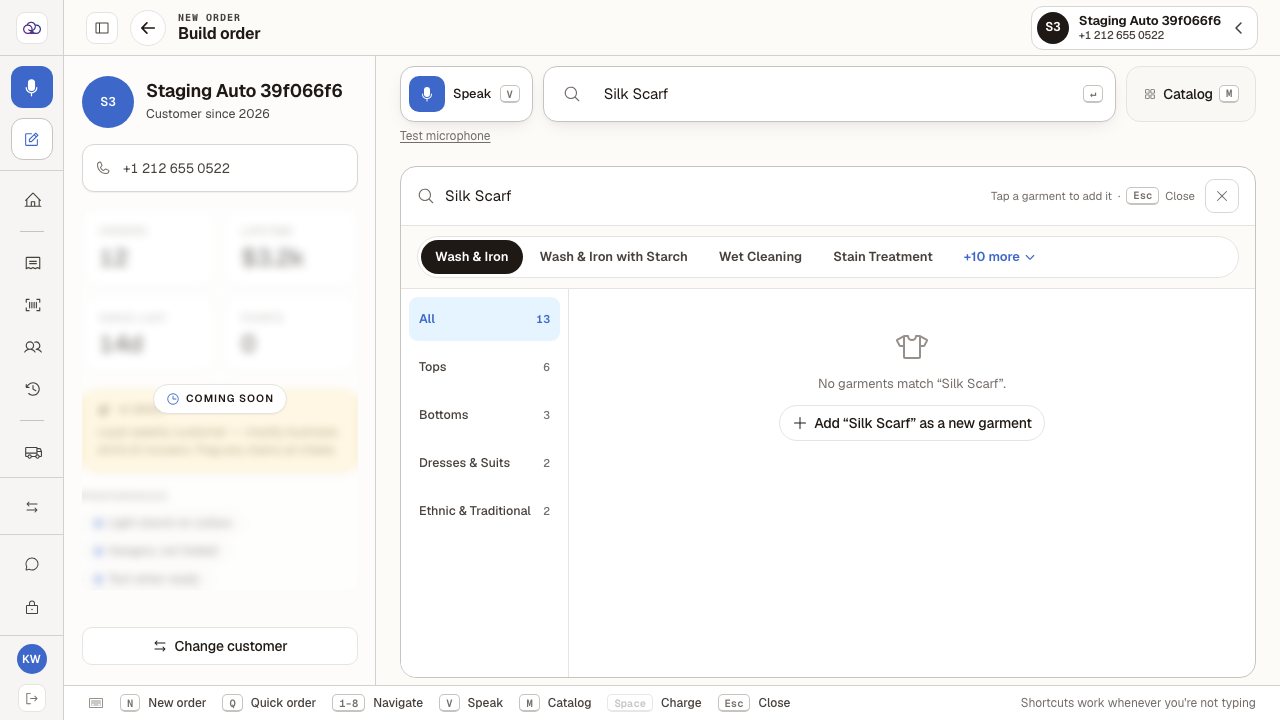
With an order open, press "M" for the catalog and search for the garment — "Silk Scarf" here.
If nothing in your price list matches, the grid says so and offers to add it instead. Check the service tab and the category rail first — the garment may exist under a different service.
- 2
Click "Add … as a new garment" to set it up.
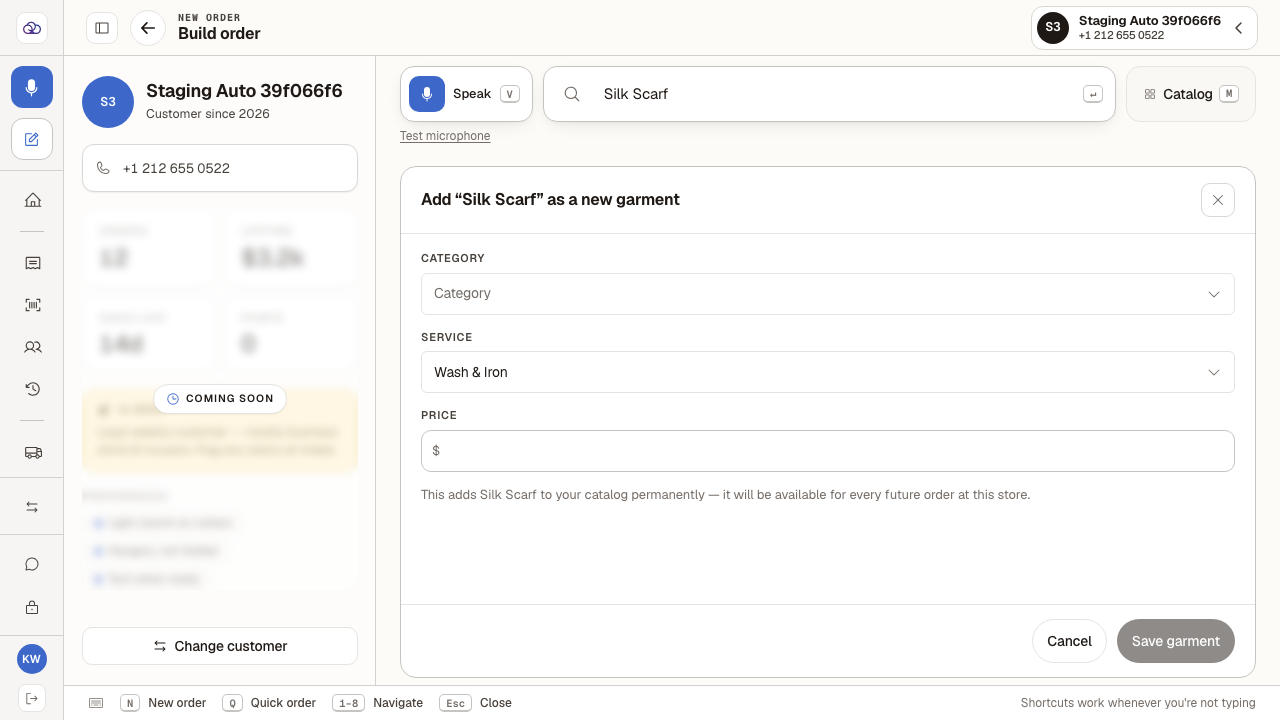
The name is already filled in from what you searched for, and the service is the tab you were on. "Save garment" stays greyed out until the rest is filled in.
- 3
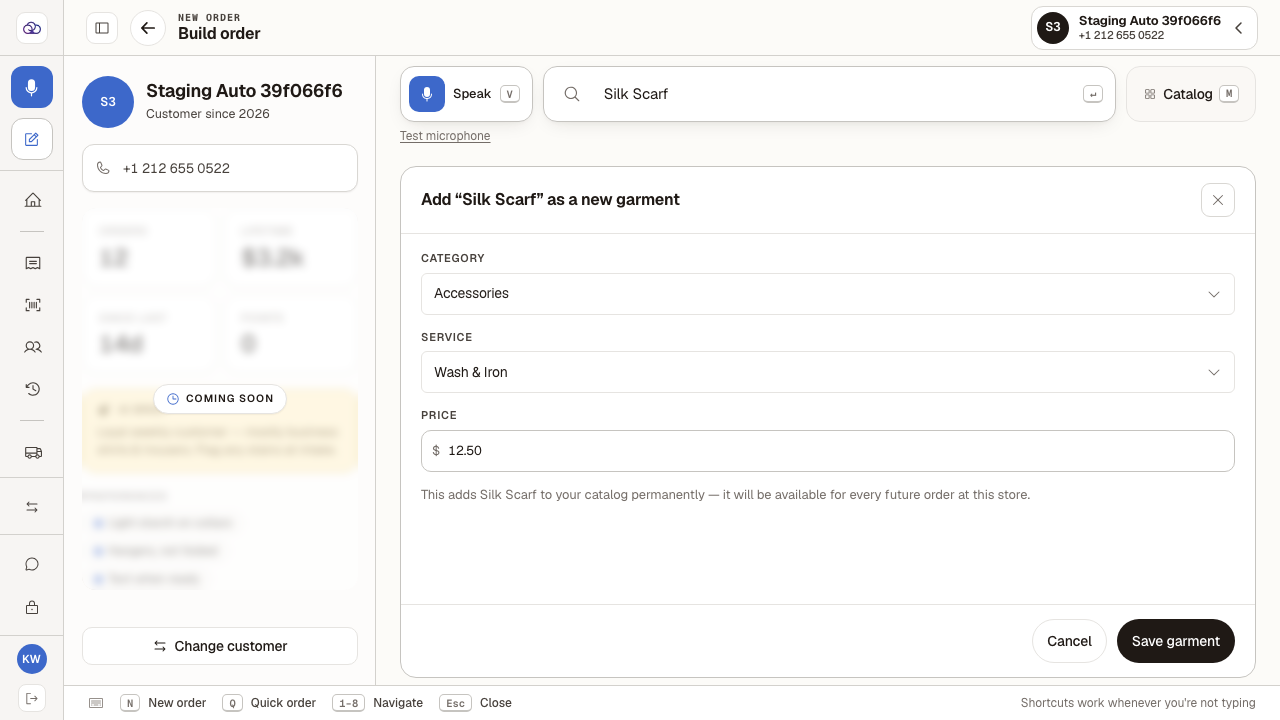
Choose a category — "Accessories" — and enter the price, 12.50. "Save garment" then becomes available.
Both are needed: a price on its own is not enough to enable the button. Read the line above it before you save — this adds the garment to your catalog permanently, for every future order at this store, not just for the ticket you are on. If you only want it this once, use Cancel and add the charge to the order instead.
- 4
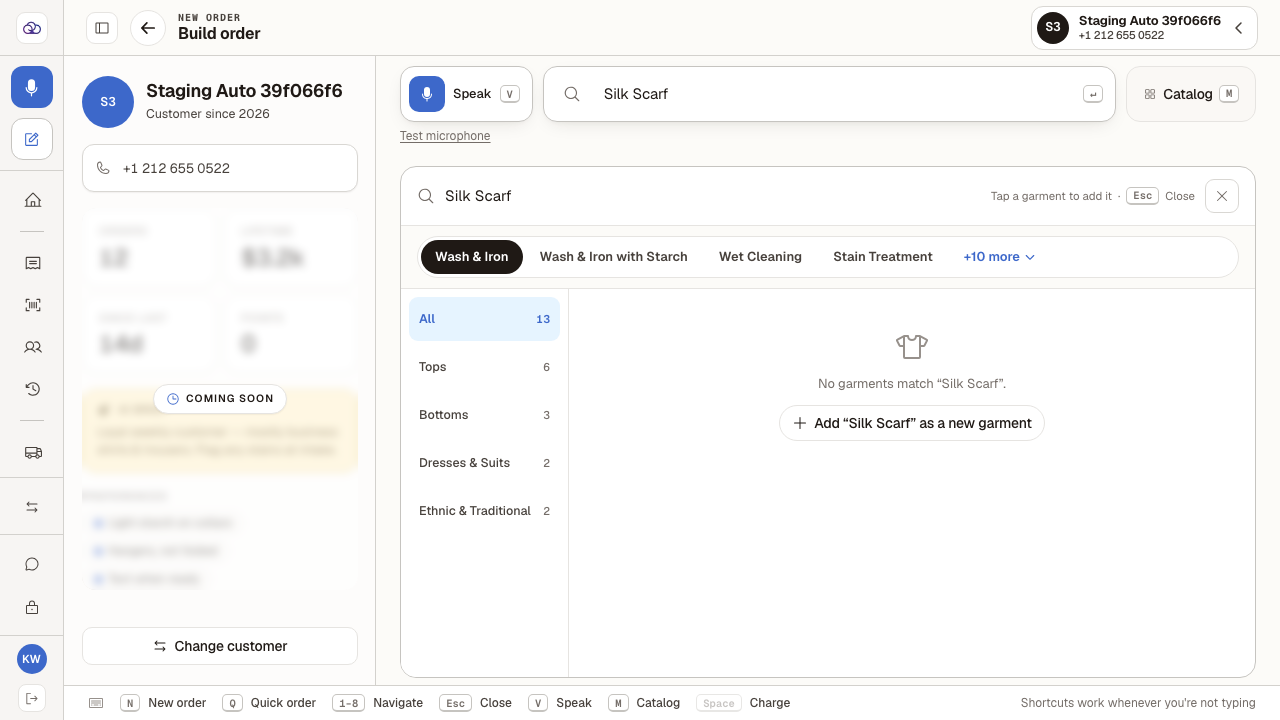
Cancel takes you back to the search with nothing saved.
Nothing is written to the catalog and nothing is added to the order until you press "Save garment".
Last verified: 8/20/2026, 1:48:29 PM · https://pos-staging.ci.quickdrycleaning.com