Turn a lead into a customer
✓ PASSINGSomeone asked for a collection outside your delivery zones, so the POS saved them as a lead. This turns that lead into a real customer.
- 1
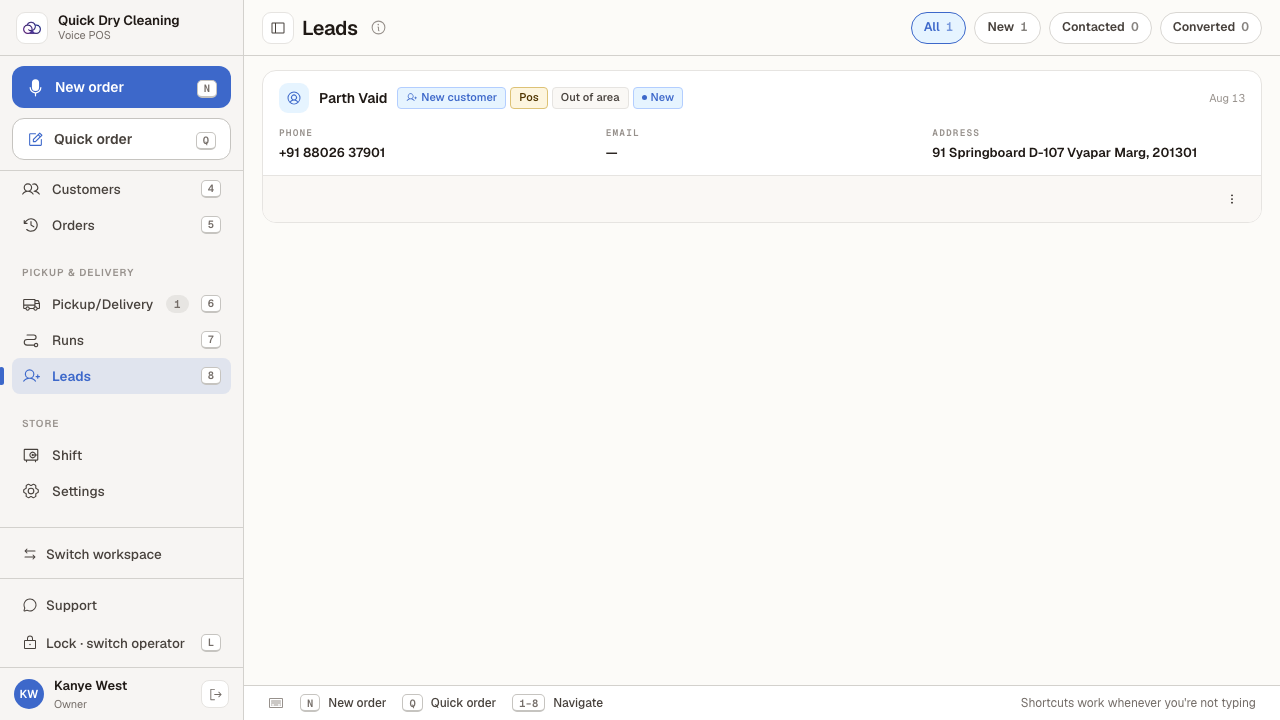
Sign in, choose the "Counter POS" workspace, then open "Leads" in the sidebar.
Leads are out-of-area requests. When someone books outside your delivery zones the POS keeps their details here instead of turning them away. The filters along the top count them by status: All, New, Contacted and Converted.
- 2
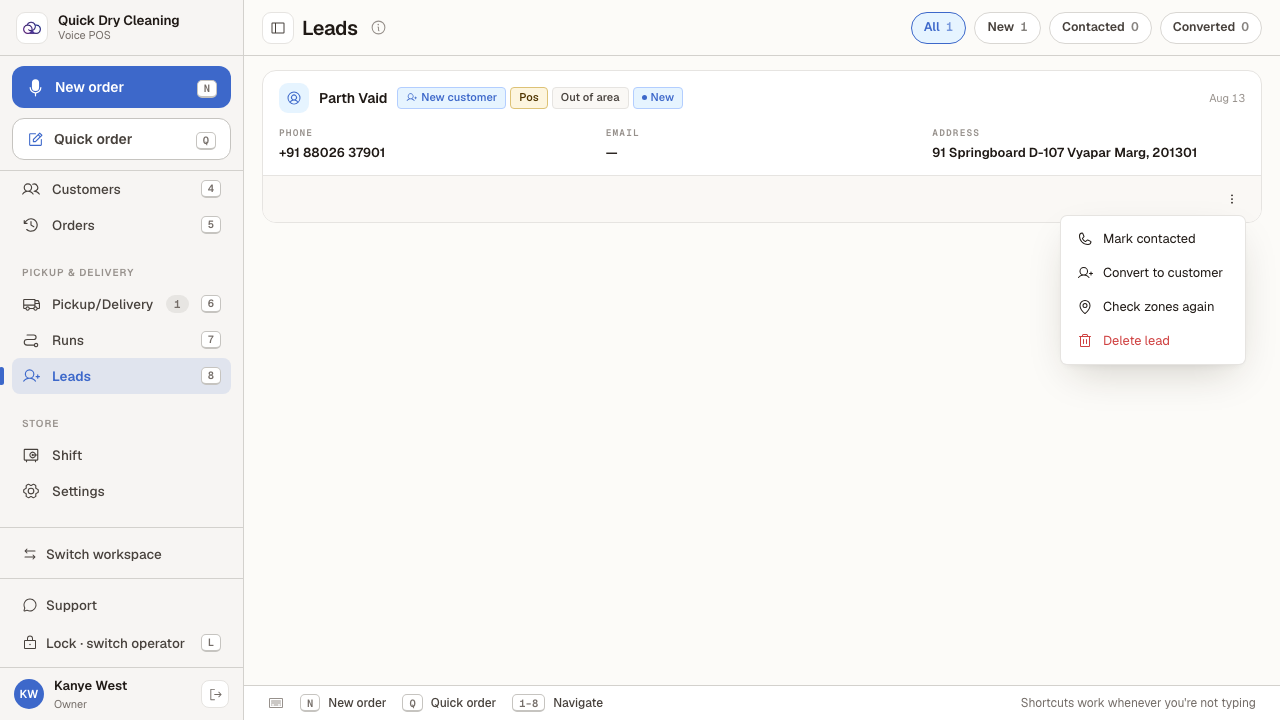
Click the "⋯" button on the lead to open its actions.
The menu offers four things: mark them as contacted, convert them into a customer, re-check whether they are now inside your zones, or delete the lead.
- 3
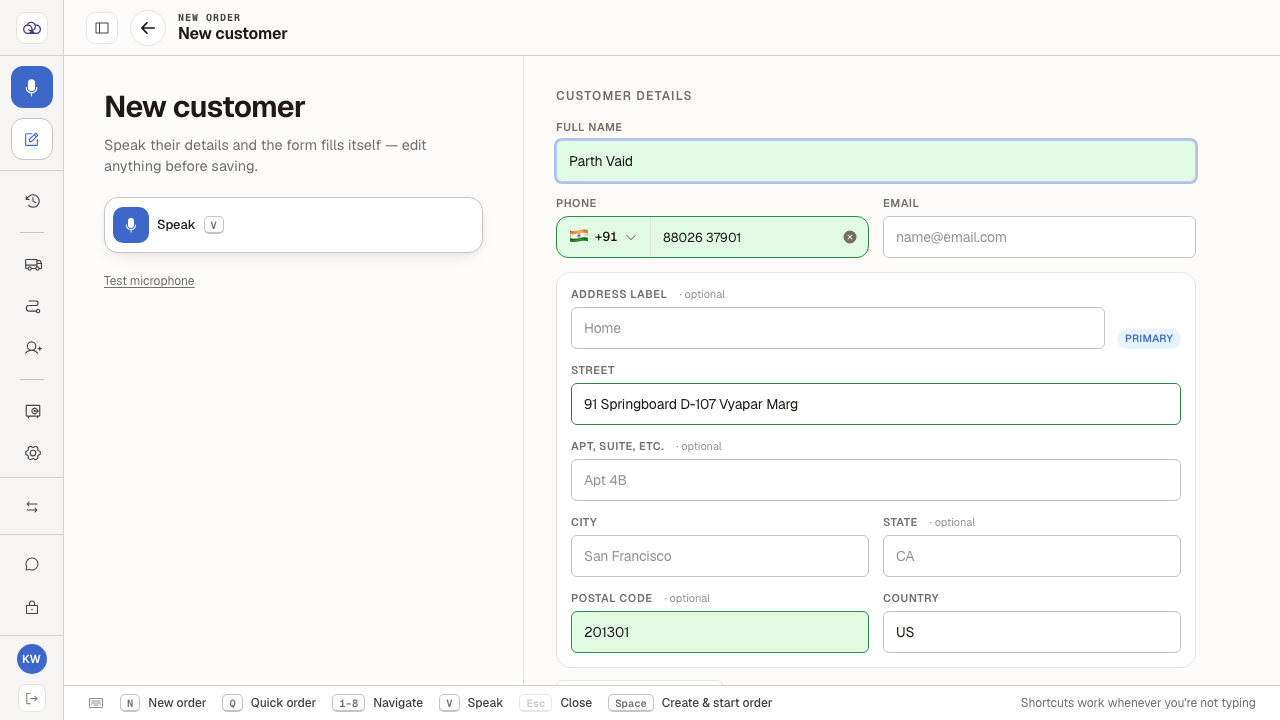
Choose "Convert to customer". The new-customer form opens with their details already filled in.
The name, phone number and address captured when they were turned away are carried straight across — nothing needs retyping.
- 4
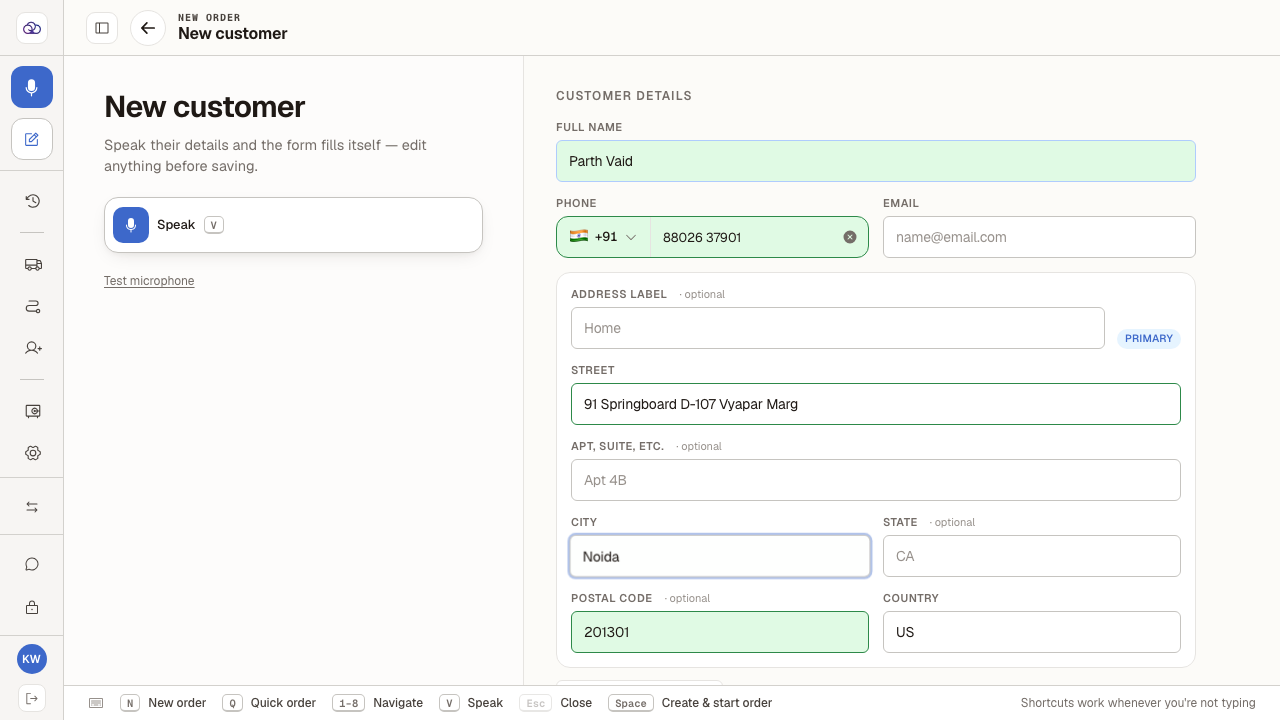
Check the address and fill in anything missing — the town or city in particular.
The address saved against a lead does not include the city, and the form will not save without it. If you click Create and nothing happens, this is why: look for "This field is required." under the City box.
- 5
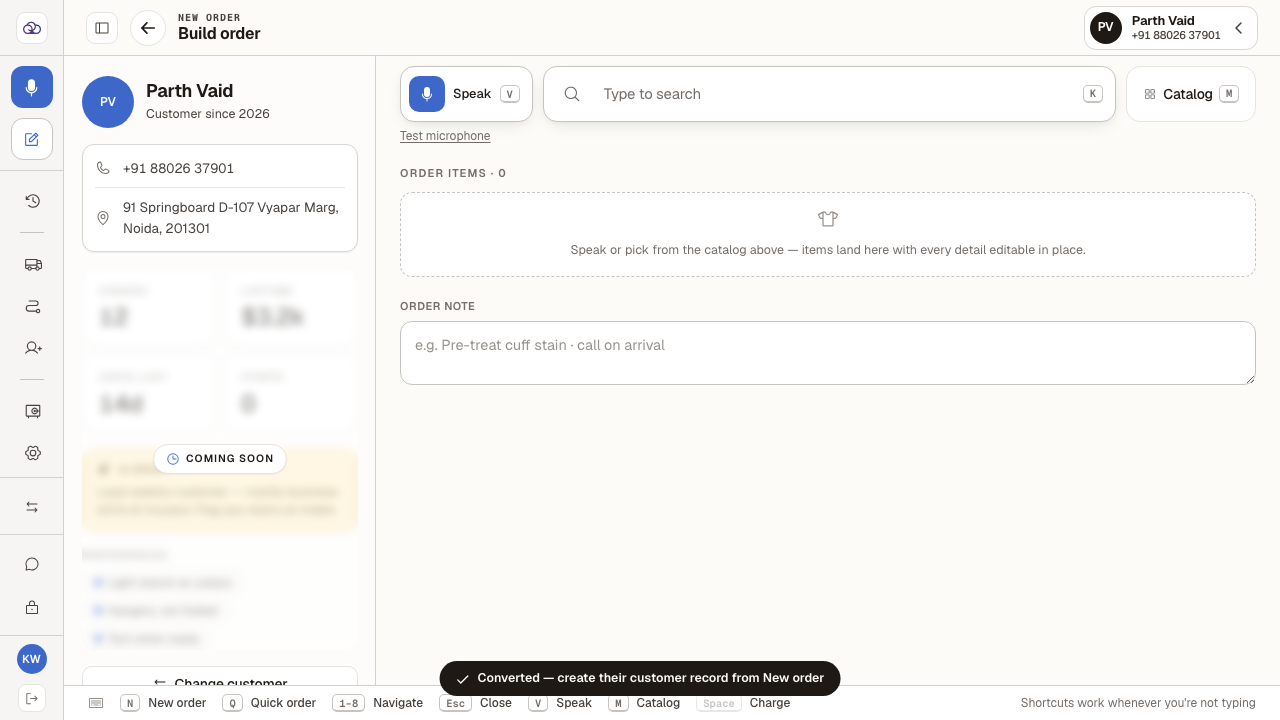
Click "Create & start order". They become a real customer and an order is started for them.
From here they are a normal customer and will show up in the Customers directory, so the next time they call there is nothing to re-enter.
Last verified: 8/20/2026, 11:39:03 AM · https://pos-staging.ci.quickdrycleaning.com