Edit a customer’s details
✓ PASSINGFind a customer in the directory, open their record, change their details, and check the change was saved.
- 1
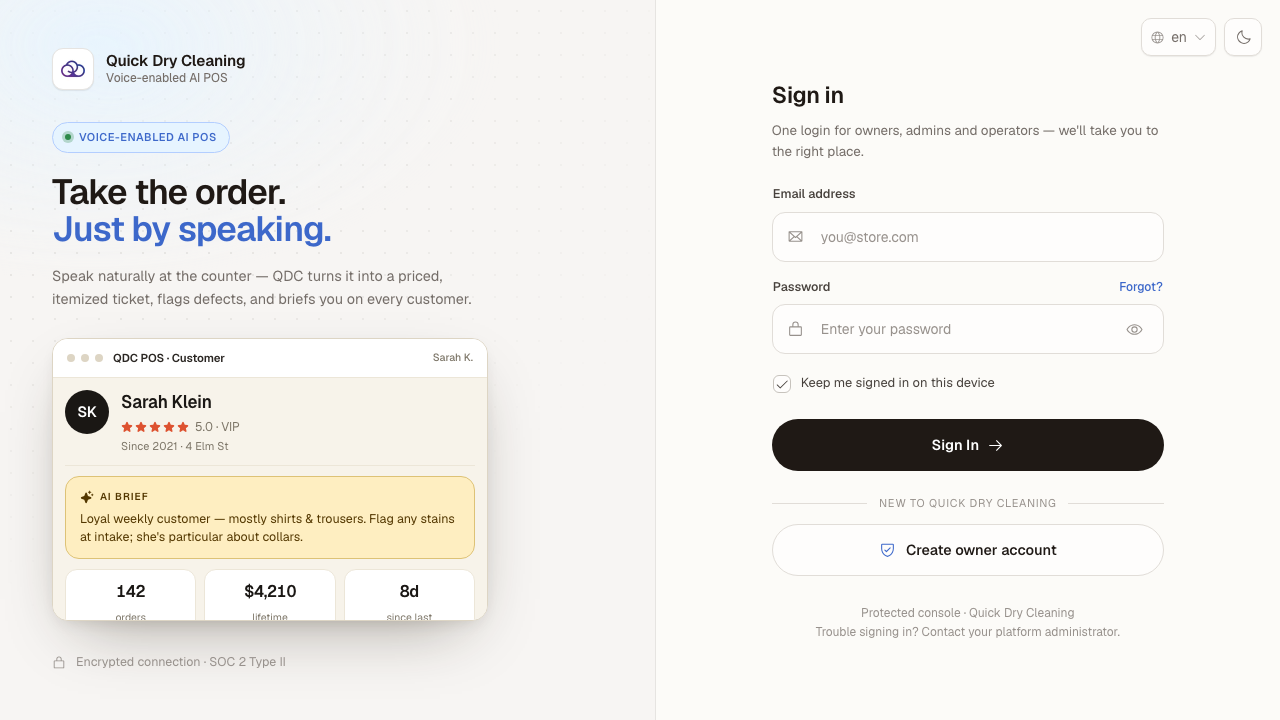
Open the POS in your browser. The sign-in page appears.
- 2
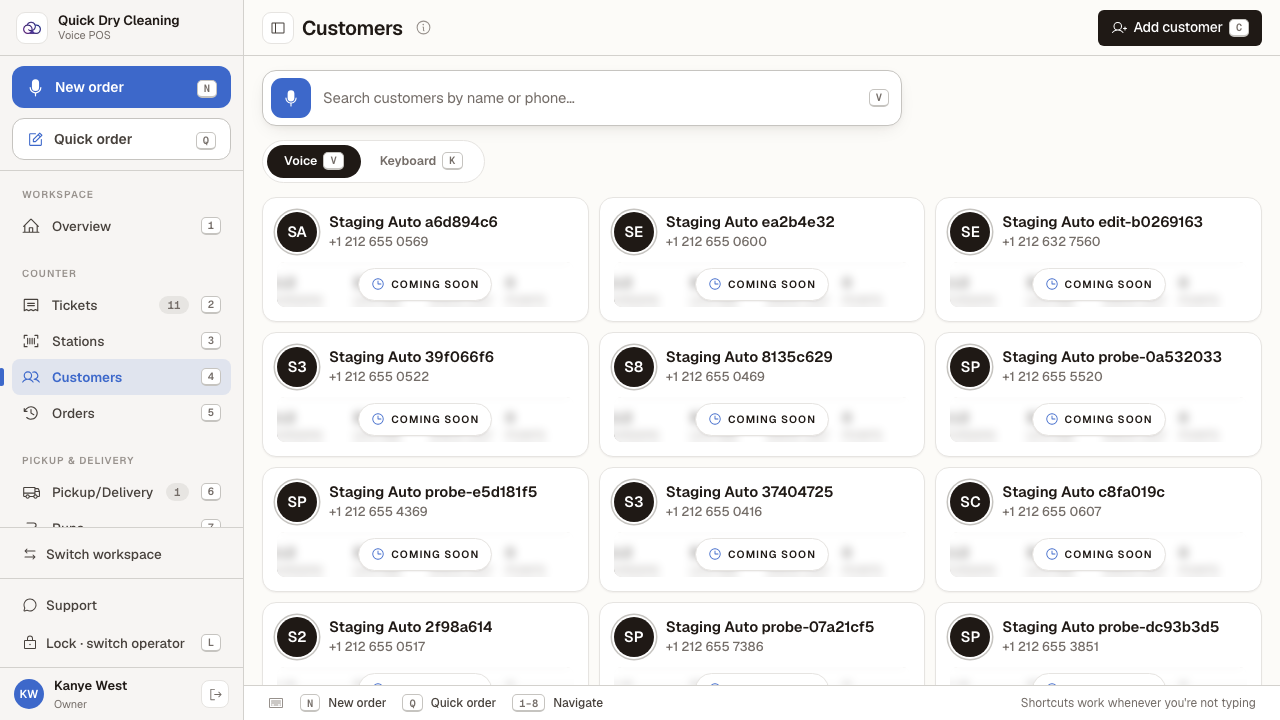
Sign in, choose the "Counter POS" workspace, then open "Customers" in the sidebar.
Every customer in the store is listed here as a card.
- 3
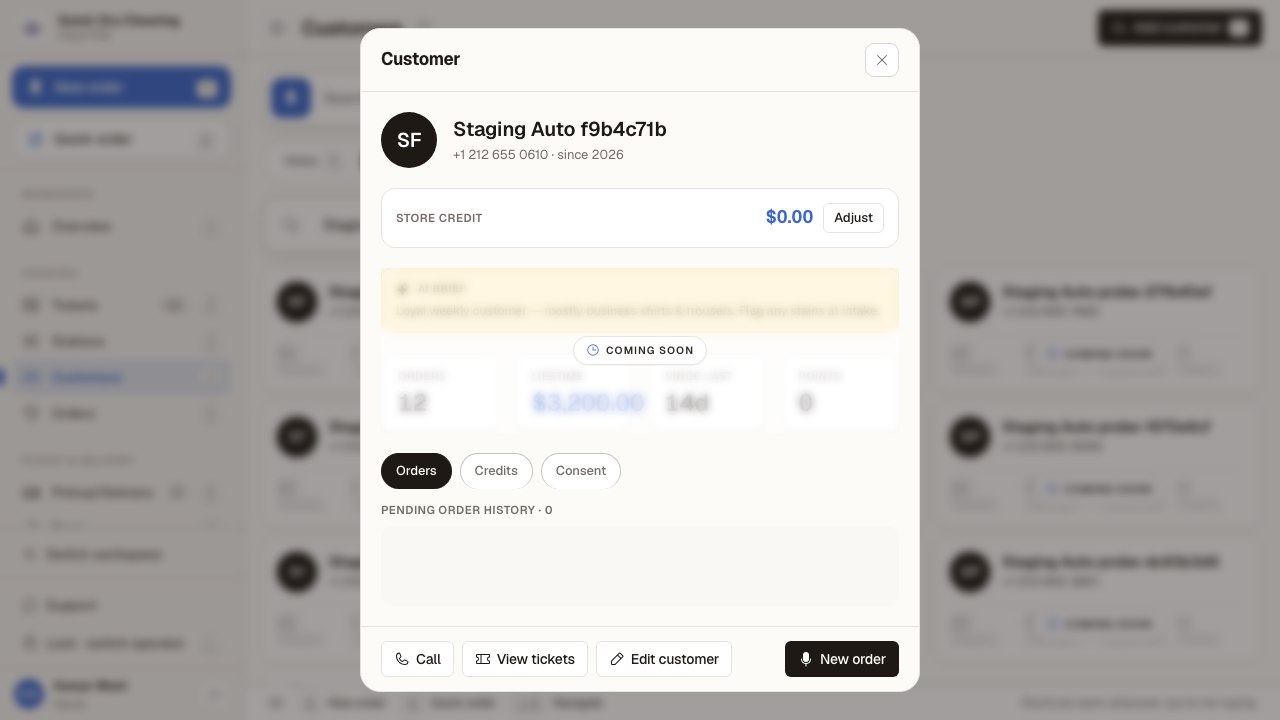
Search for the customer by name or phone number, then click their card.
Their record opens: contact details, store credit, and tabs for Orders, Credits and Consent. "Edit customer" is at the bottom.
- 4
Click "Edit customer", change what you need — here, the email address — and click "Save changes".
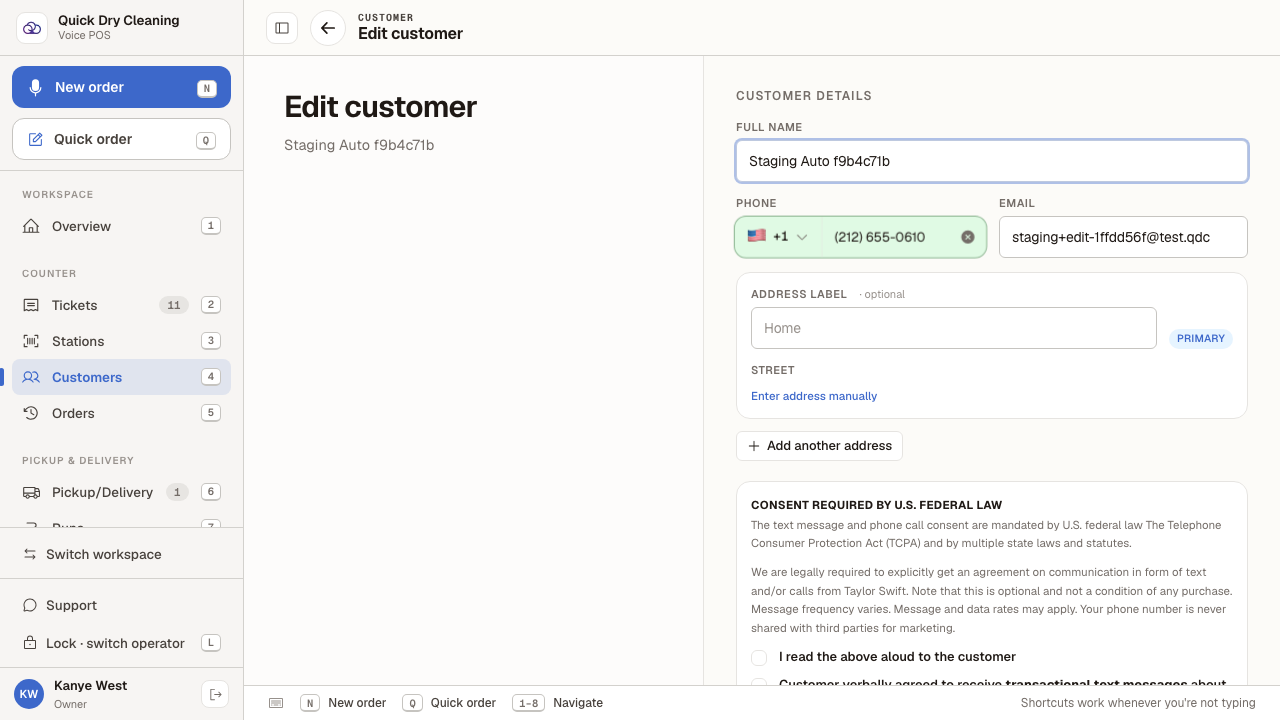
The form holds the customer's name, phone, email and addresses, plus the consent checkboxes required for texting or calling them. Saving returns you to their record.
- 5
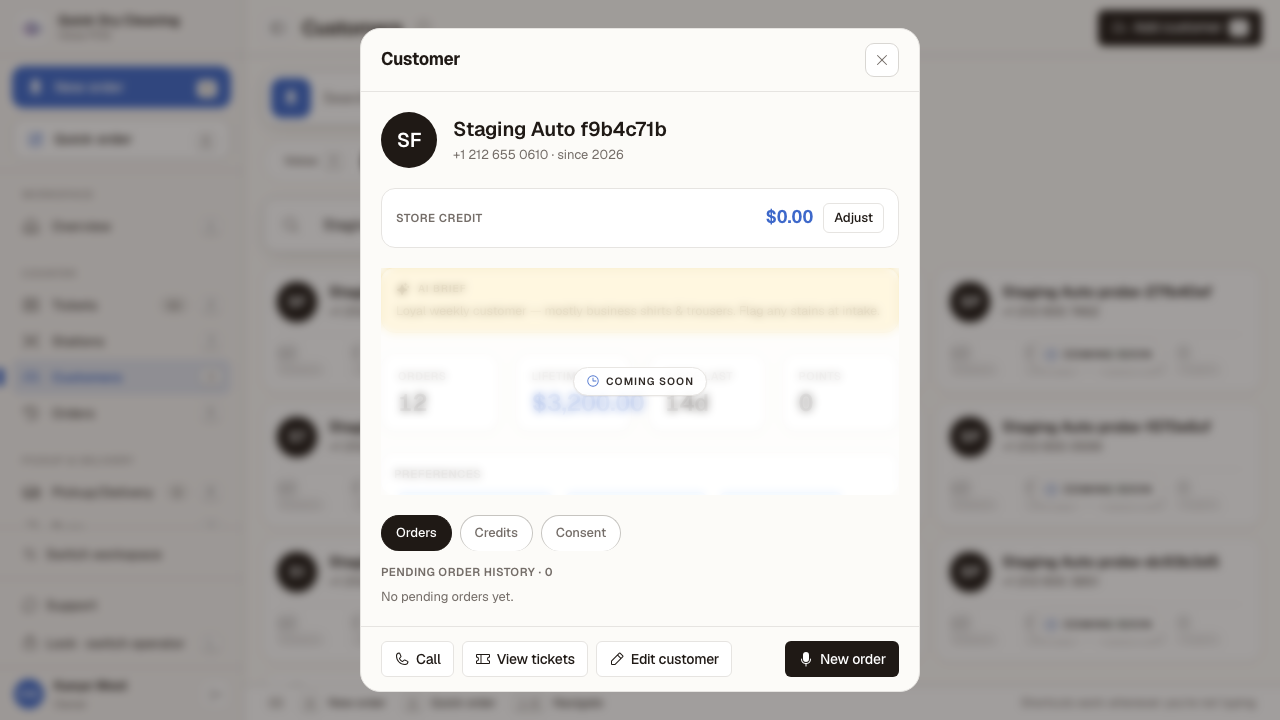
Reopen the customer and click "Edit customer" again — the new details are there.
The record itself does not display the email, so the edit form is where you confirm it. This screenshot was taken after a full page reload, so what it shows is the saved record, not an unsaved form.
Last verified: 8/20/2026, 11:05:45 AM · https://pos-staging.ci.quickdrycleaning.com