Add a new customer
✓ PASSINGRegister a walk-in customer at the counter and start their first order.
- 1
Sign in and choose the Counter POS workspace.
- 2
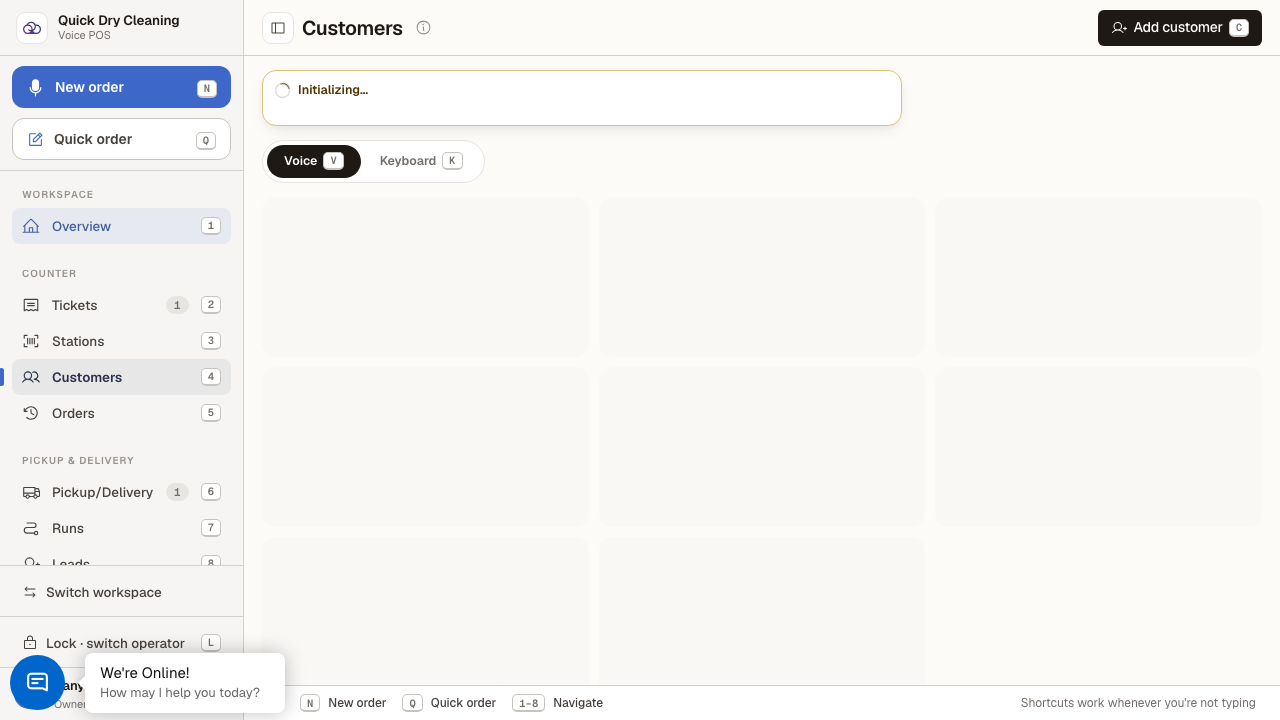
Open Customers from the sidebar (or press 4).
The customer directory with voice-first search.
- 3
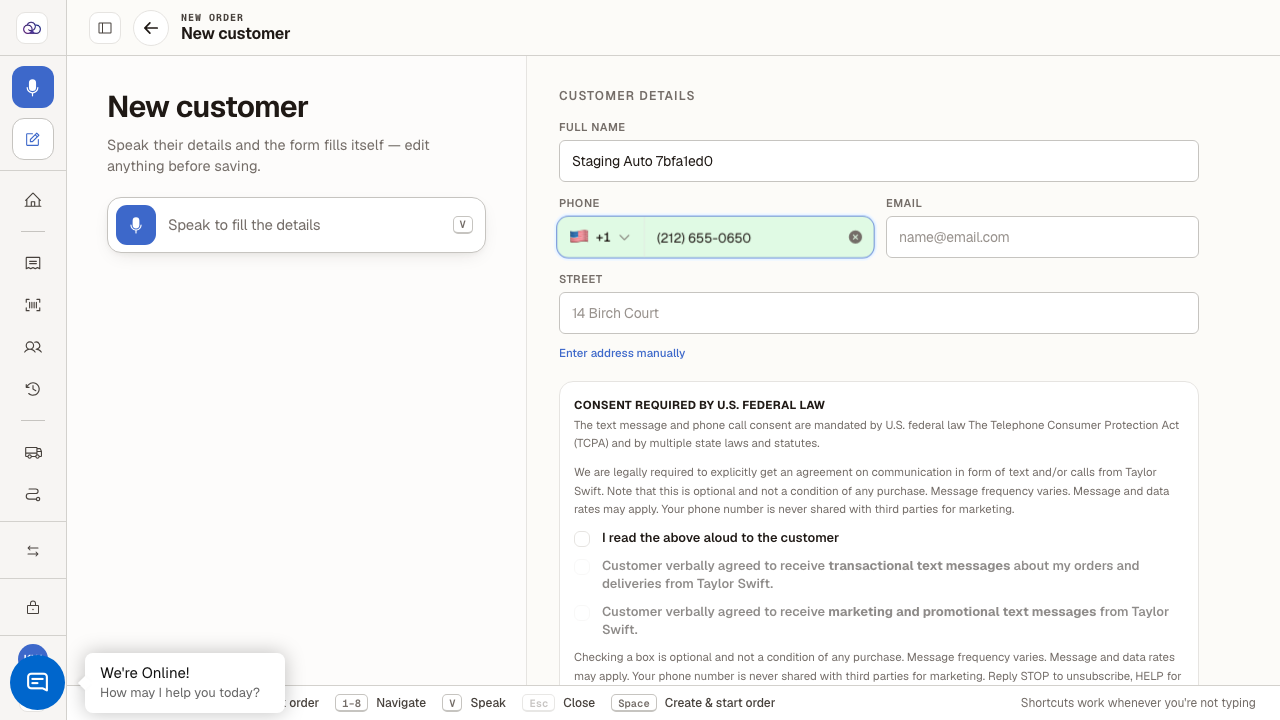
Click "Add customer" (or press C), then enter the customer's name and phone number.
This opens the New customer screen of the order flow — adding a customer and starting their order happen together. Email and address are optional, and the text-message consent boxes are only ticked if the customer verbally agrees.
- 4
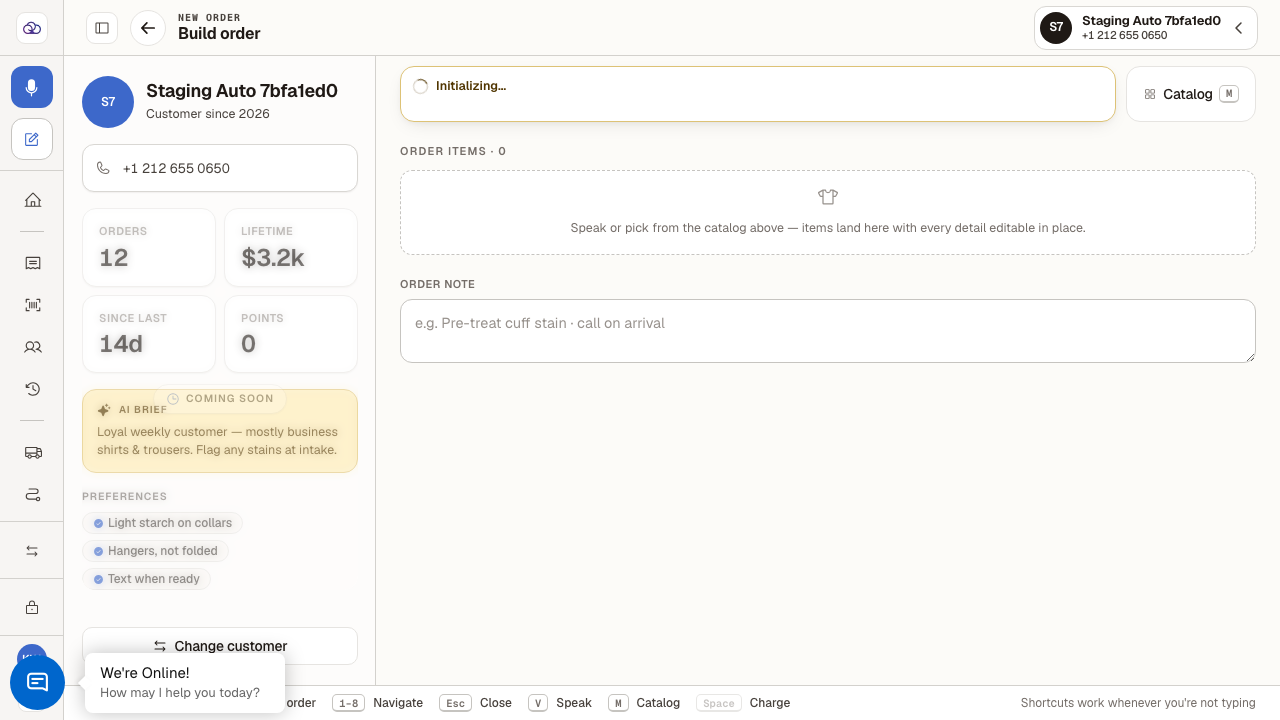
Click "Create & start order" (or press Space).
The customer is saved and you land on Build order with their profile attached — ready to add garments, or press Esc to leave the draft.
Last verified: 8/18/2026, 11:08:19 AM · https://pos-staging.ci.quickdrycleaning.com