Put a garment on the ticket
✓ PASSINGTap a garment — or type its name and press Enter — and it goes straight onto the ticket with its details open for editing.
- 1
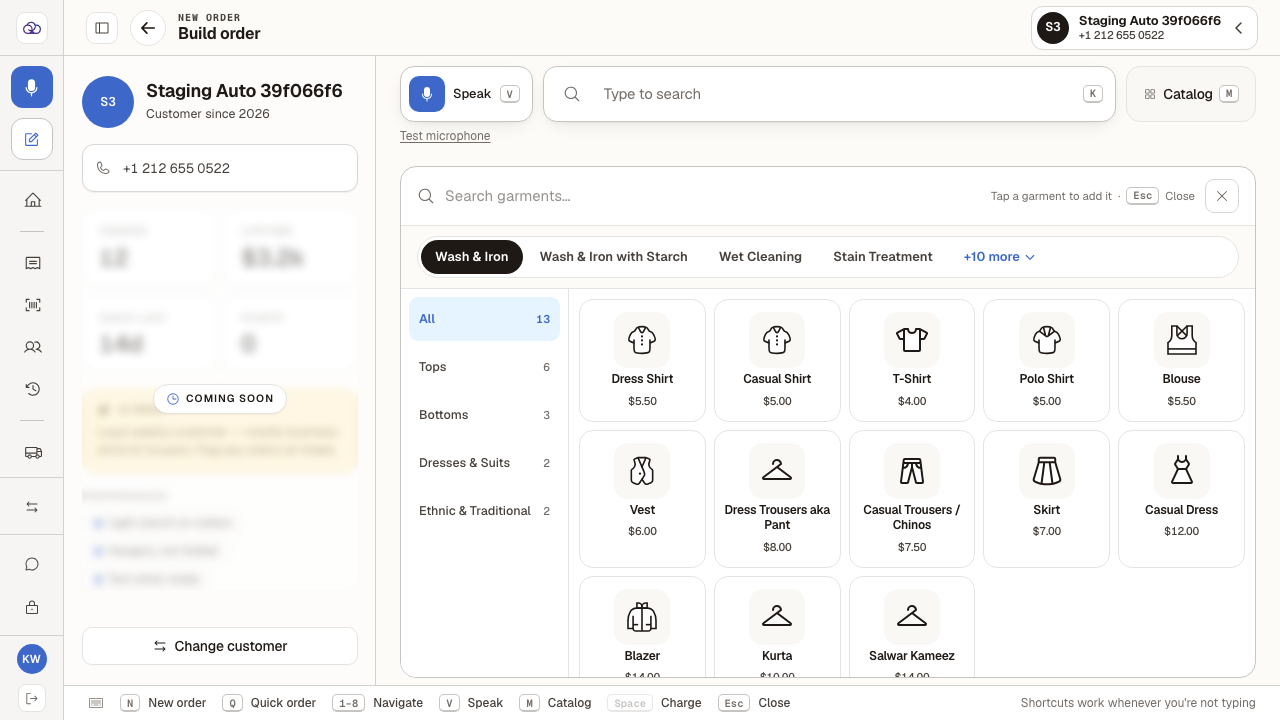
With an order open, press "M" for the catalog. The ticket starts empty.
Set the service along the top before you pick, so the garment is priced correctly.
- 2
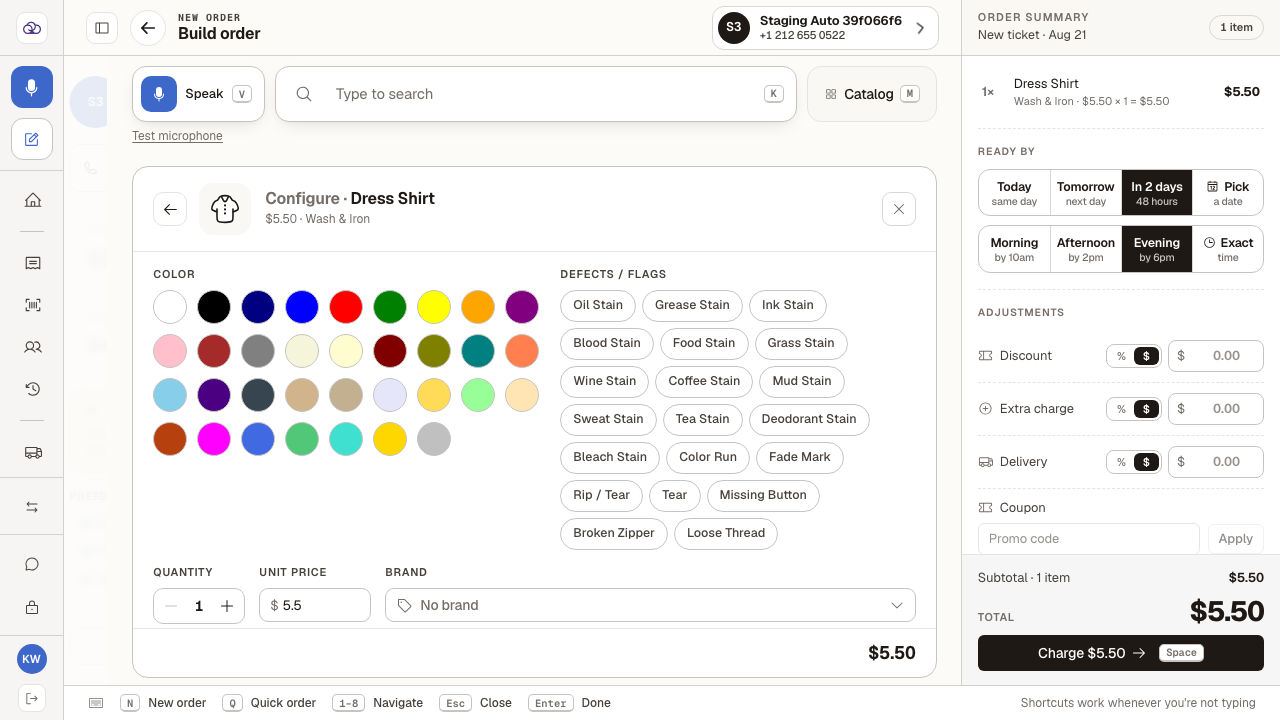
Tap the garment — "Dress Shirt" here. It is on the ticket straight away, and its details open.
There is no "add" button to press afterwards: the tap is the add. The heading shows what was added, at what price, under which service.
- 3
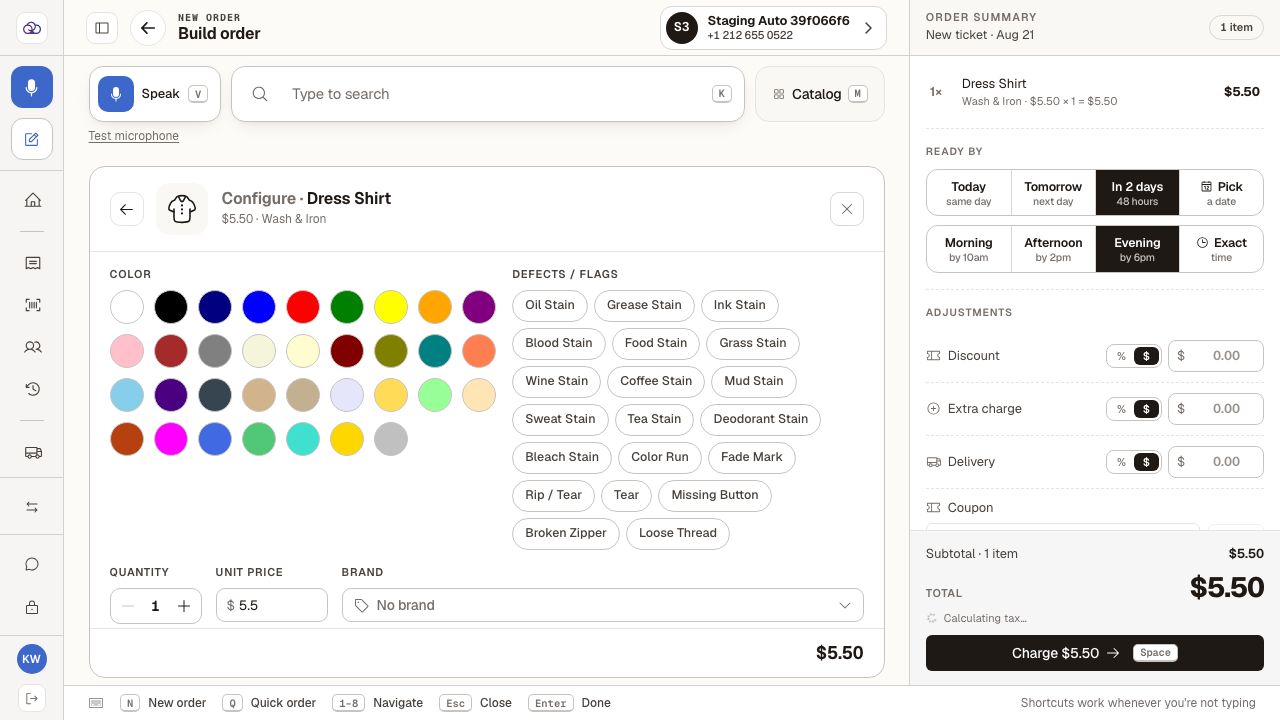
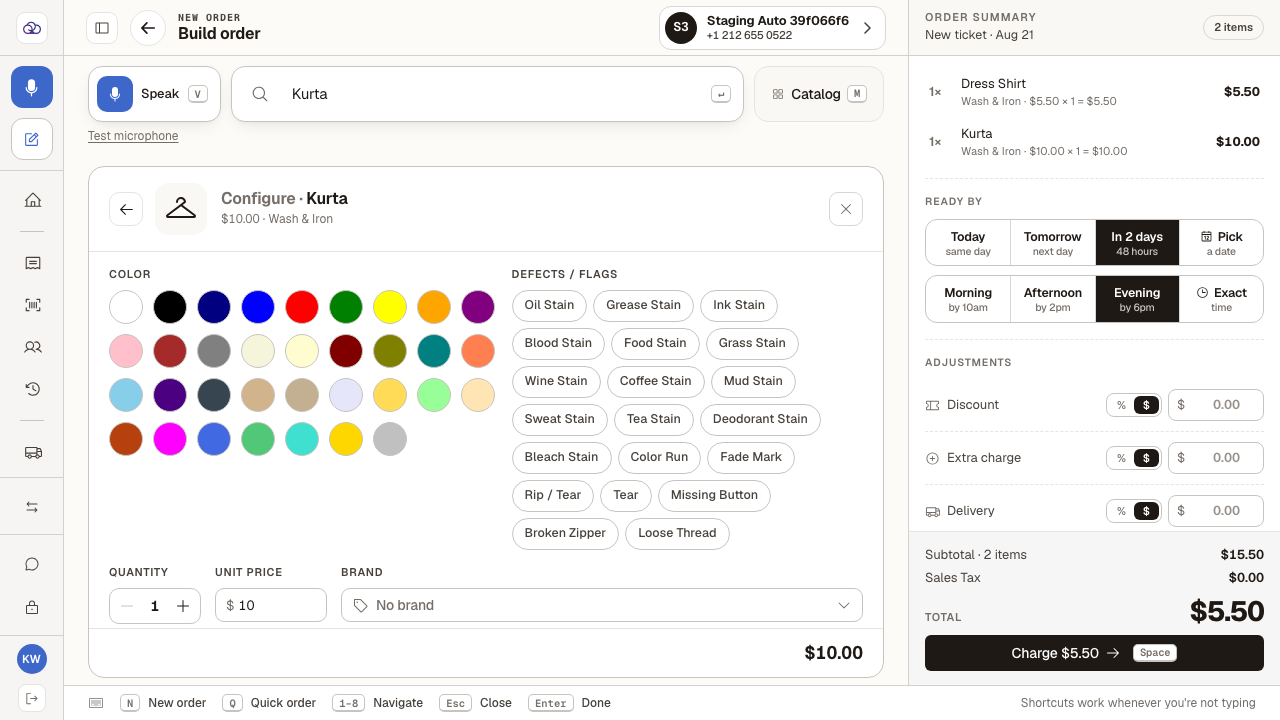
Set anything the garment needs: colour, any defects to flag, how many, the price, the brand, and a note.
Quantity starts at one and the price is filled in from your price list — change either if this one is different. Defects you flag here are what protects you if the customer queries the garment later.
- 4
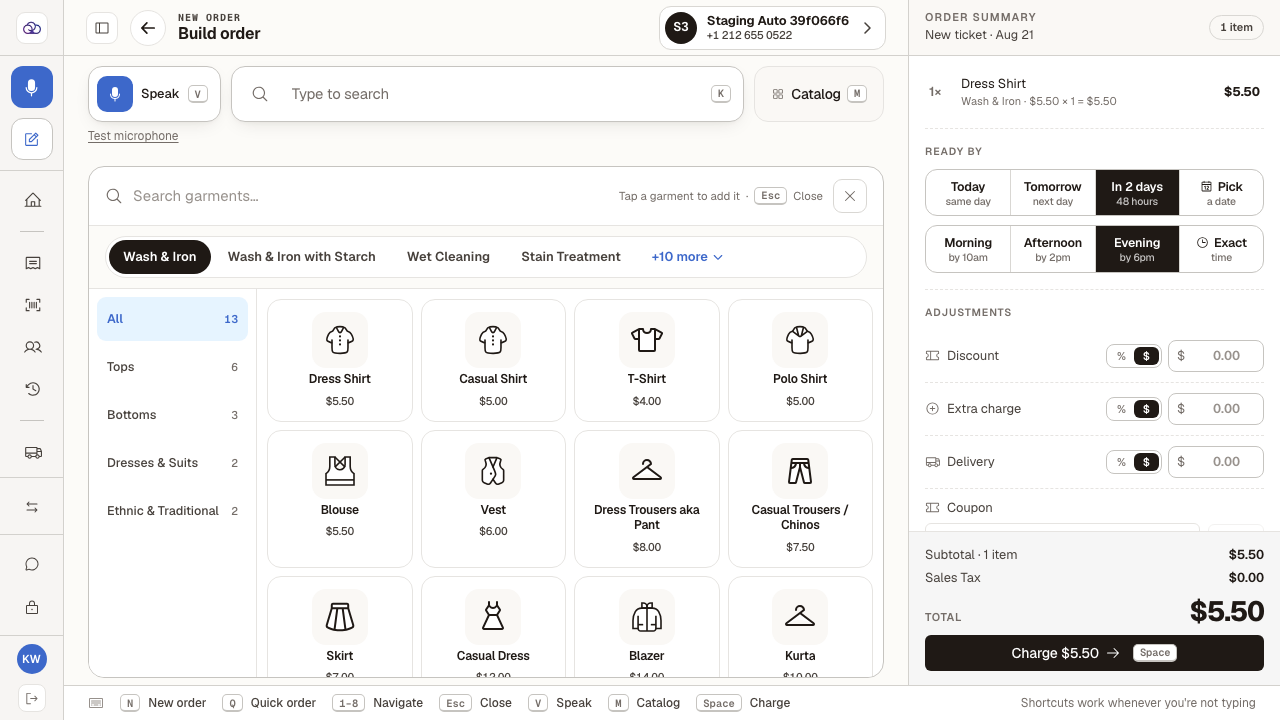
"Back" returns you to the catalog. The garment stays on the ticket.
Back is not a cancel — the line was added when you tapped it. To take something off the ticket, use the order list on the right.
- 5
Faster still: type the name and press Enter — "Kurta" — and the closest match goes on the ticket without you clicking anything.
The search box says so: "↵ adds the top match". Check the heading is the garment you meant before you carry on.
Last verified: 8/21/2026, 6:09:45 AM · https://pos-staging.ci.quickdrycleaning.com