Find a garment in the catalog
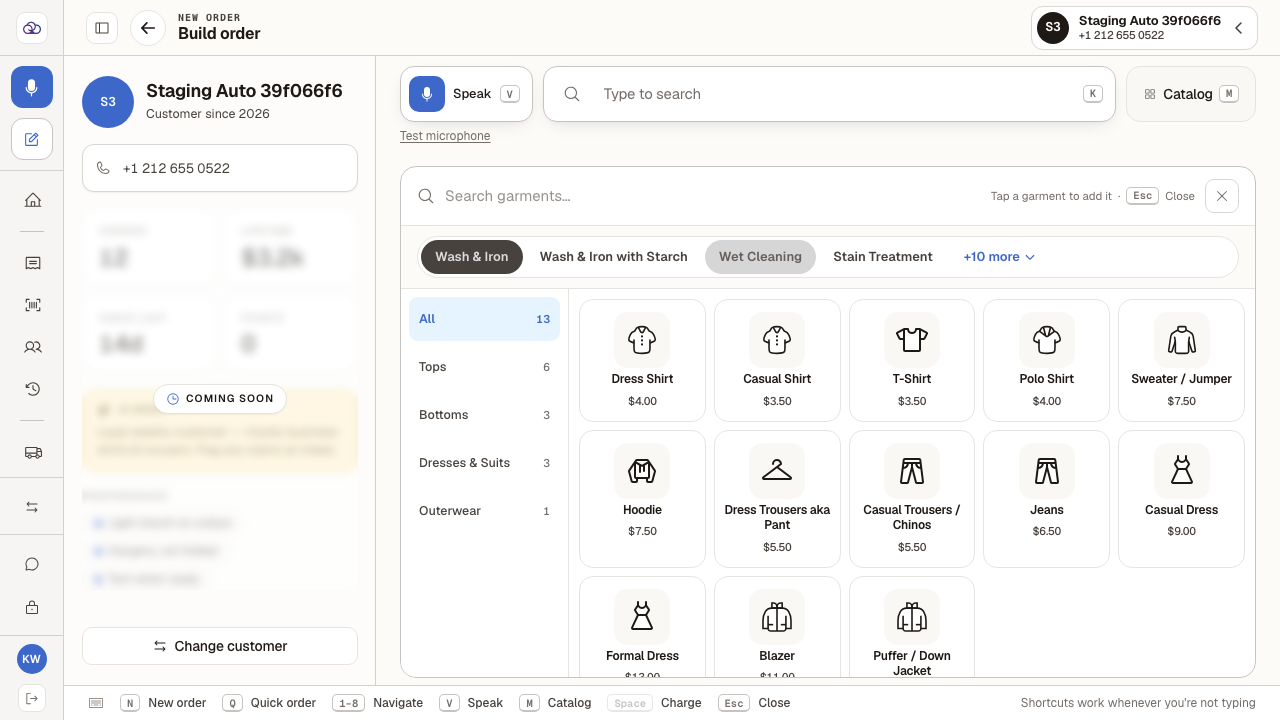
✓ PASSINGNarrow the catalog down to the garment you want, using the service tabs, the category rail and the name search — which all apply at the same time.
- 1
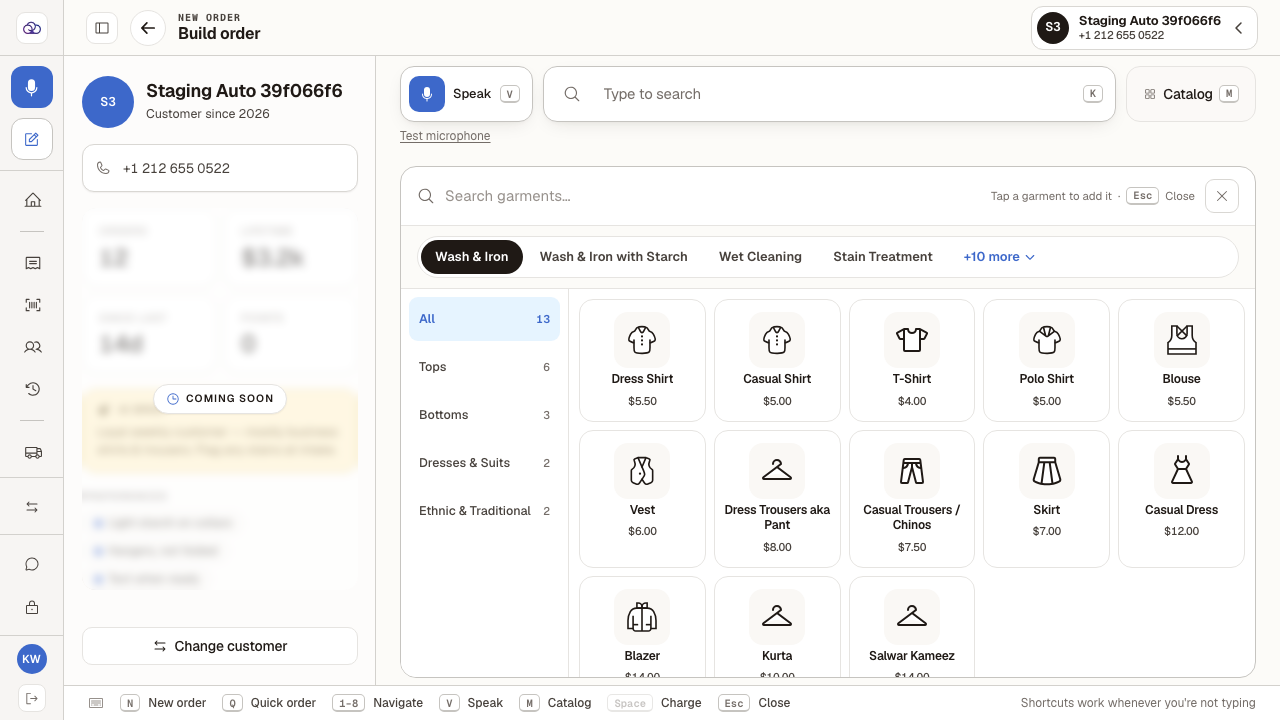
With an order open for a customer, press "M" for the catalog.
Three things narrow the grid, and they all apply at once: the service tabs along the top, the category rail down the left, and the search box. The number beside each category is how many garments it holds for the service you are on.
- 2
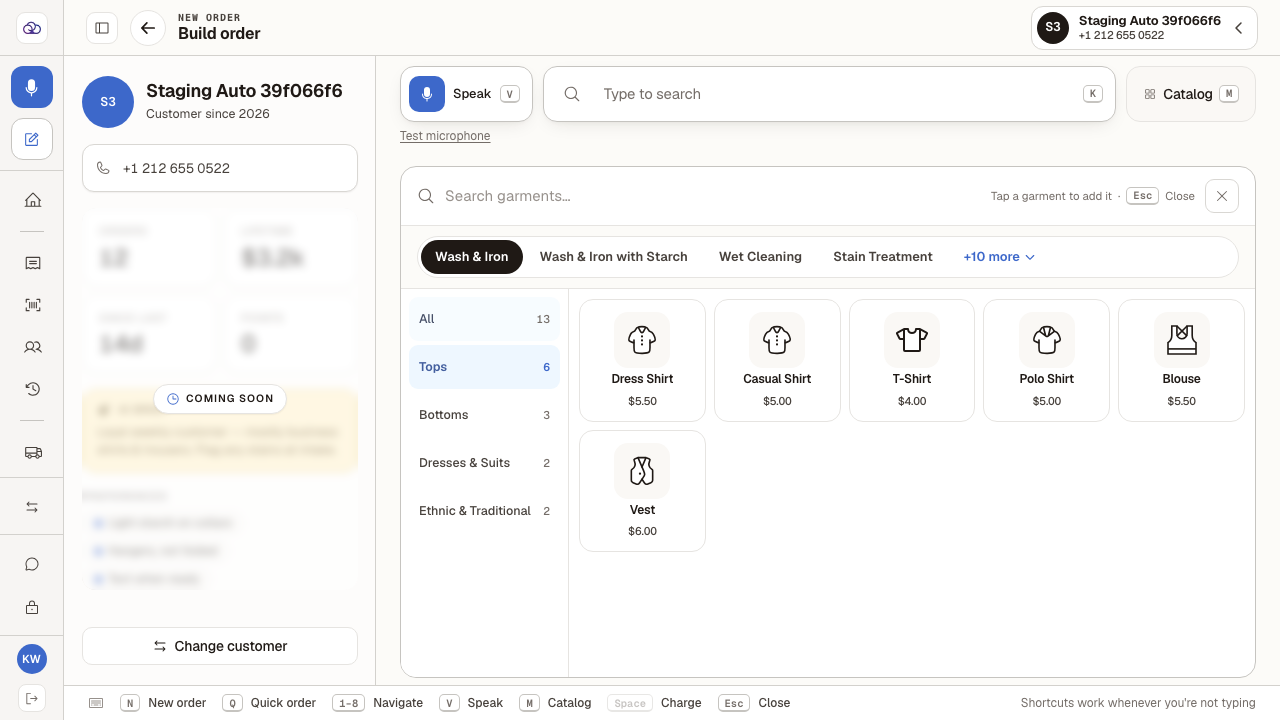
Pick a category from the rail — "Tops" here — to show only that kind of garment.
Choose "All" to put the rest back.
- 3
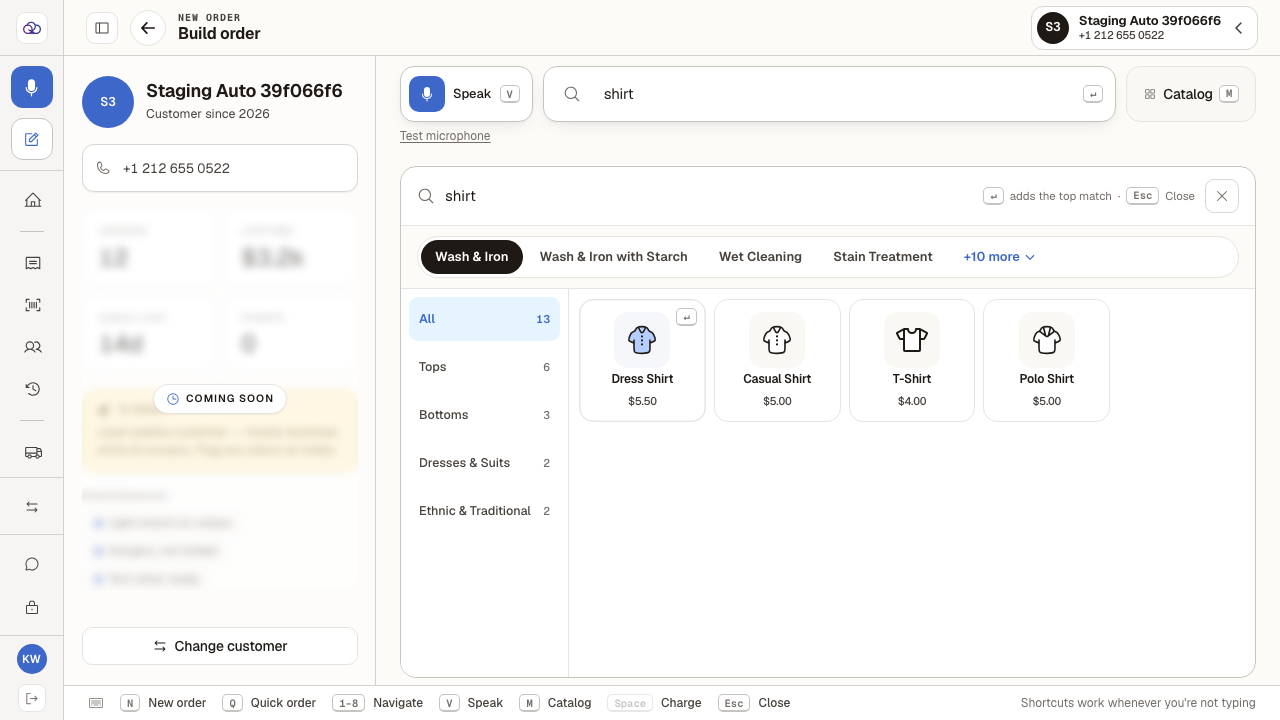
Or type a name into the search box — "shirt" here — to find a garment directly.
Capitals do not matter, and you can type part of a name.
- 4
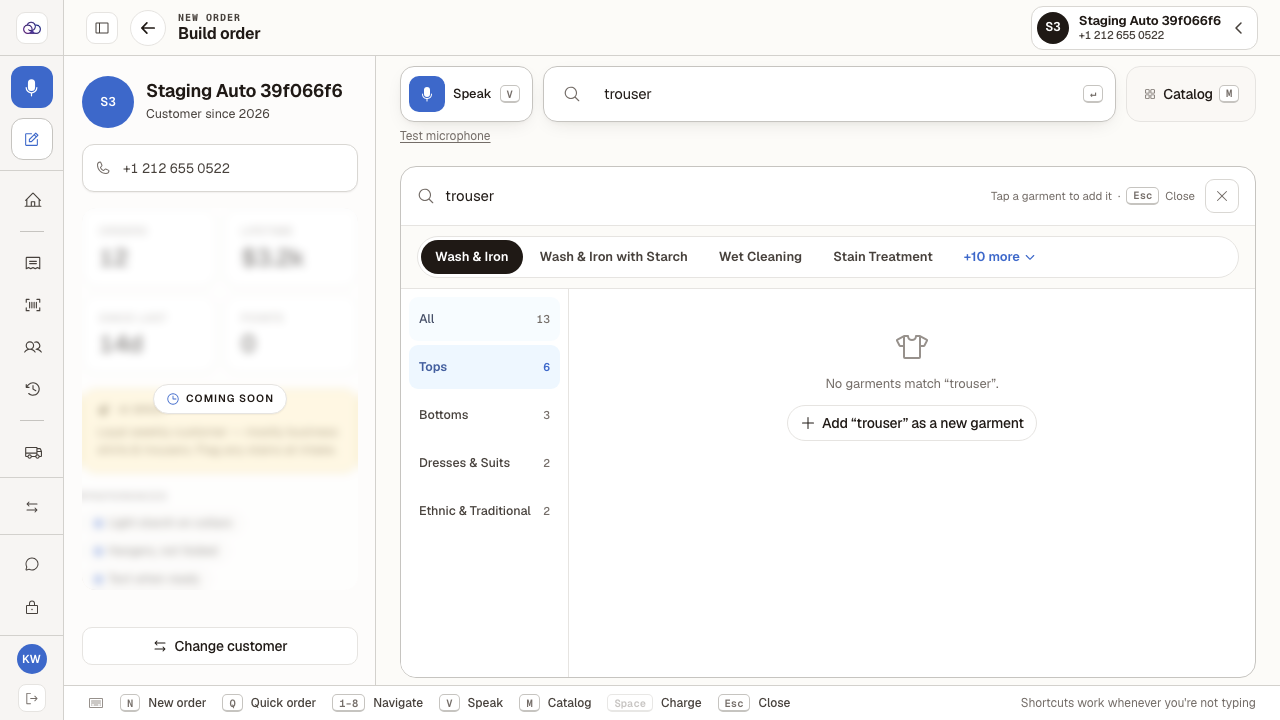
If a category and a search do not overlap, the grid comes up empty.
"trouser" matches real garments, and "Tops" holds plenty — but no trouser is a tops garment, so together they find nothing. This is the filters agreeing with each other, not a fault. Clear the search box, or choose "All", to widen it again.
- 5
Changing the service along the top — to "Wet Cleaning" here — changes the whole catalog.
Each service carries its own garment list, its own prices and its own categories: Wet Cleaning offers Outerwear and a Puffer Jacket that Wash & Iron does not, and a Dress Shirt costs a different amount under each. Pick the service first, then the garment.
Last verified: 8/20/2026, 1:29:27 PM · https://pos-staging.ci.quickdrycleaning.com