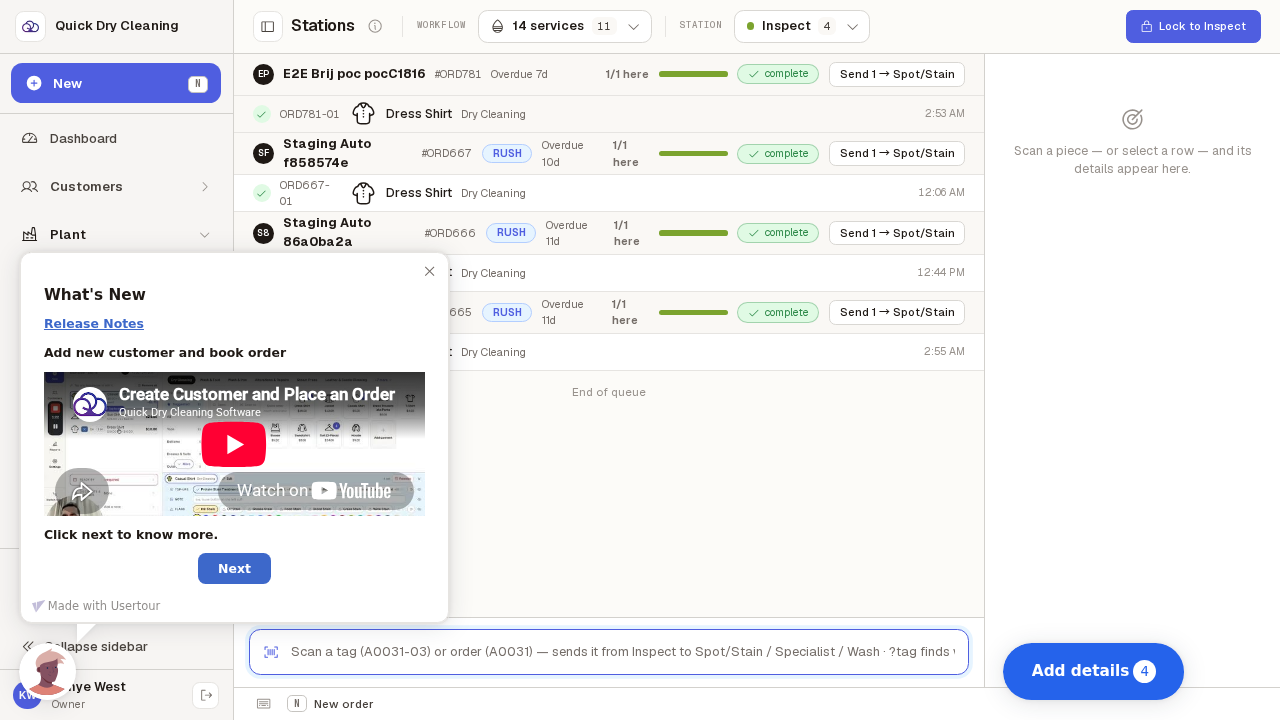
See where the work is piling up
Every station carries a number showing how many garments are waiting there, so you can see at a glance which bench is behind without walking the floor. In these screenshots the shop is clear, so every number is zero.
Step by step
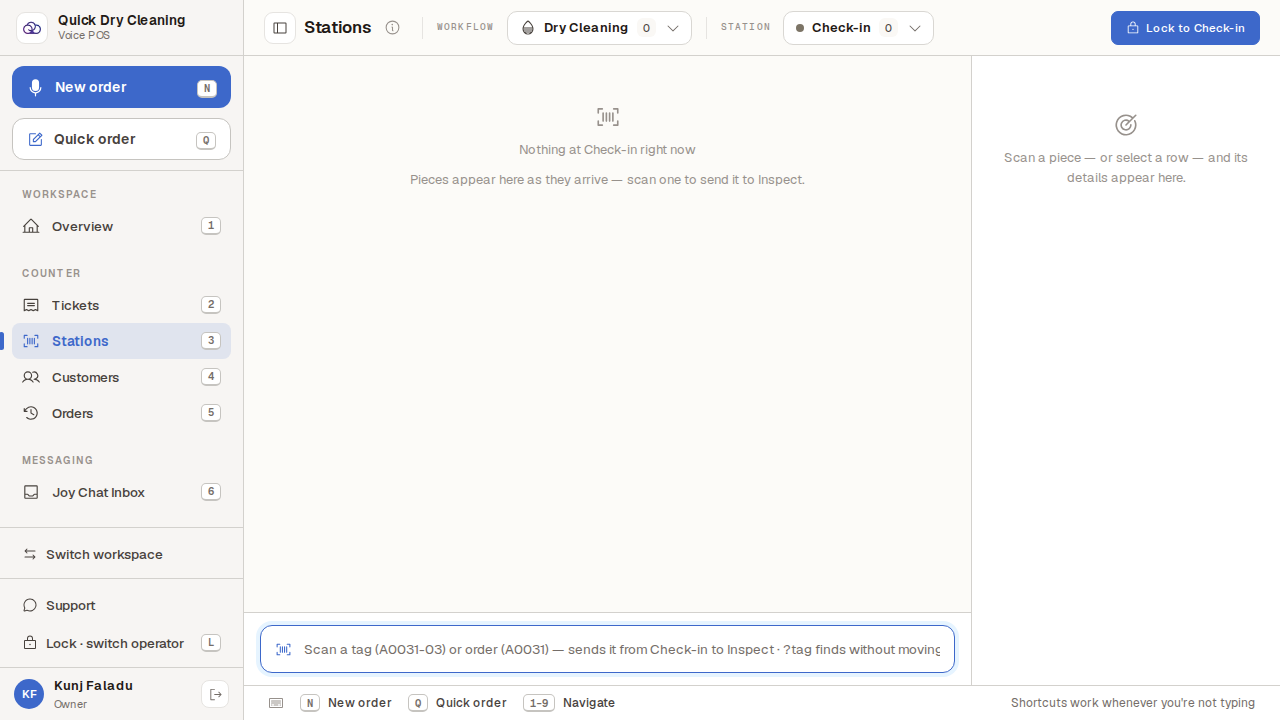
Choose "Stations" in the sidebar.
Keyboard shortcut: press "3". The control on the right shows the station you are looking at, with its waiting count beside the name.
Click that station control to open the list. Every station on this service line is shown, in the order garments pass through them.
The number on the right of each row is how many garments are waiting at that station right now. Scanning the column top to bottom tells you where the queue is building — a big number halfway down means that bench is holding everything behind it up.
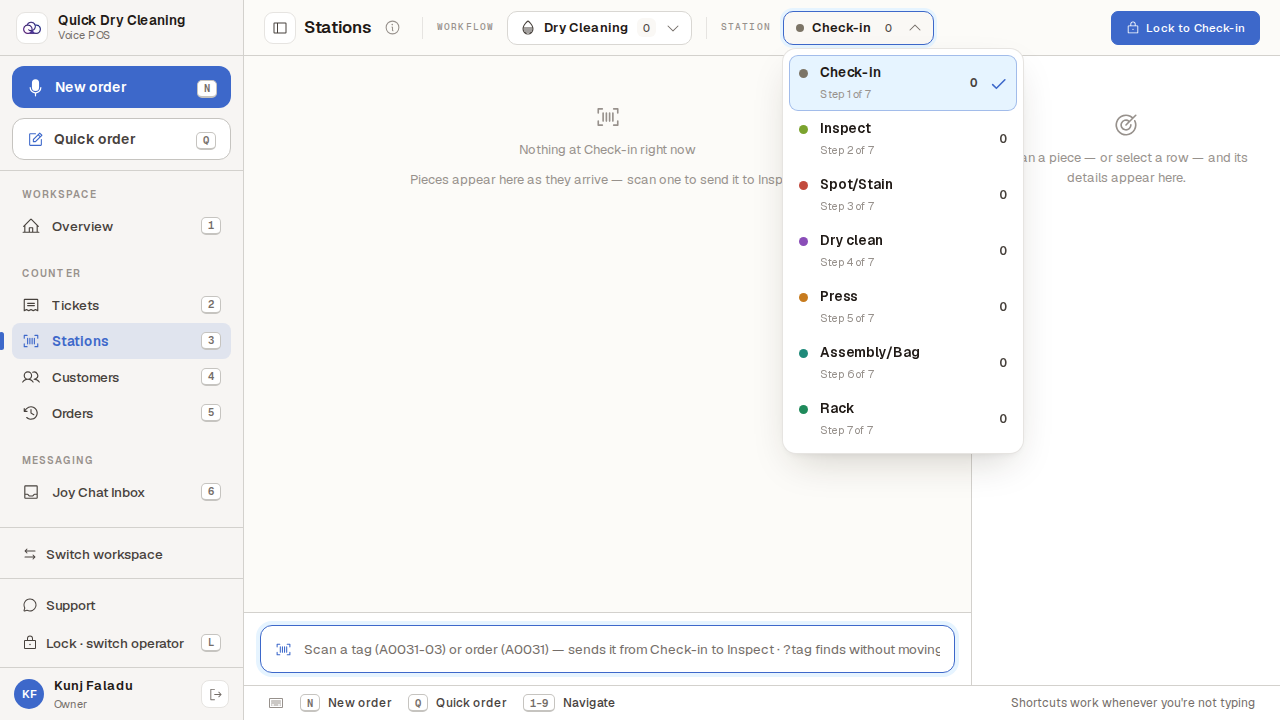
Pick your station from the list to see exactly what is waiting there.
The counts refresh on their own as garments are scanned through, so you can leave this screen open. If every number reads zero, the line is clear — that is the shop being quiet, not the screen failing.