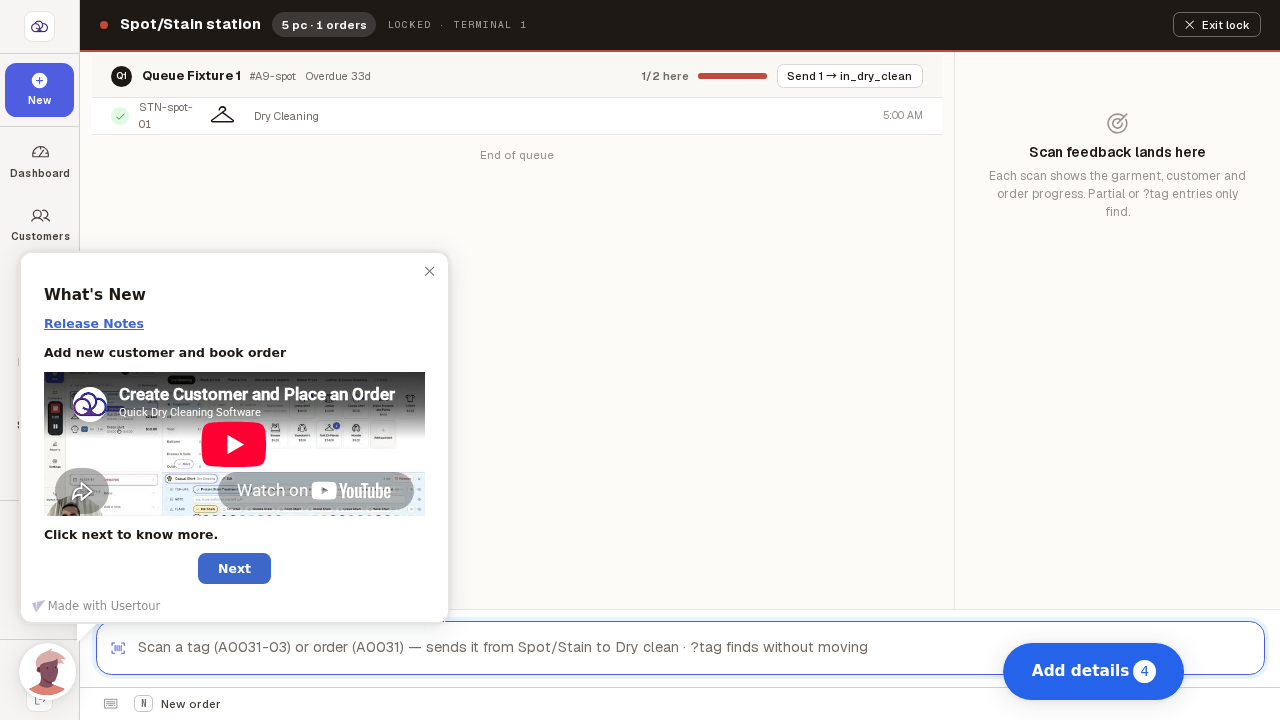
Get a terminal out of kiosk mode
A screen showing one bench and nothing else has been locked to that bench. Here is how to release it and get the full Stations screen back. It asks you to confirm, so you cannot do it by accident.
Step by step
You know a terminal is locked when it shows one bench name and a LOCKED badge at the top.
There is no sidebar with words, no workflow or station picker, and no way to see other benches. That is deliberate — it is set up for scanning at this bench only.
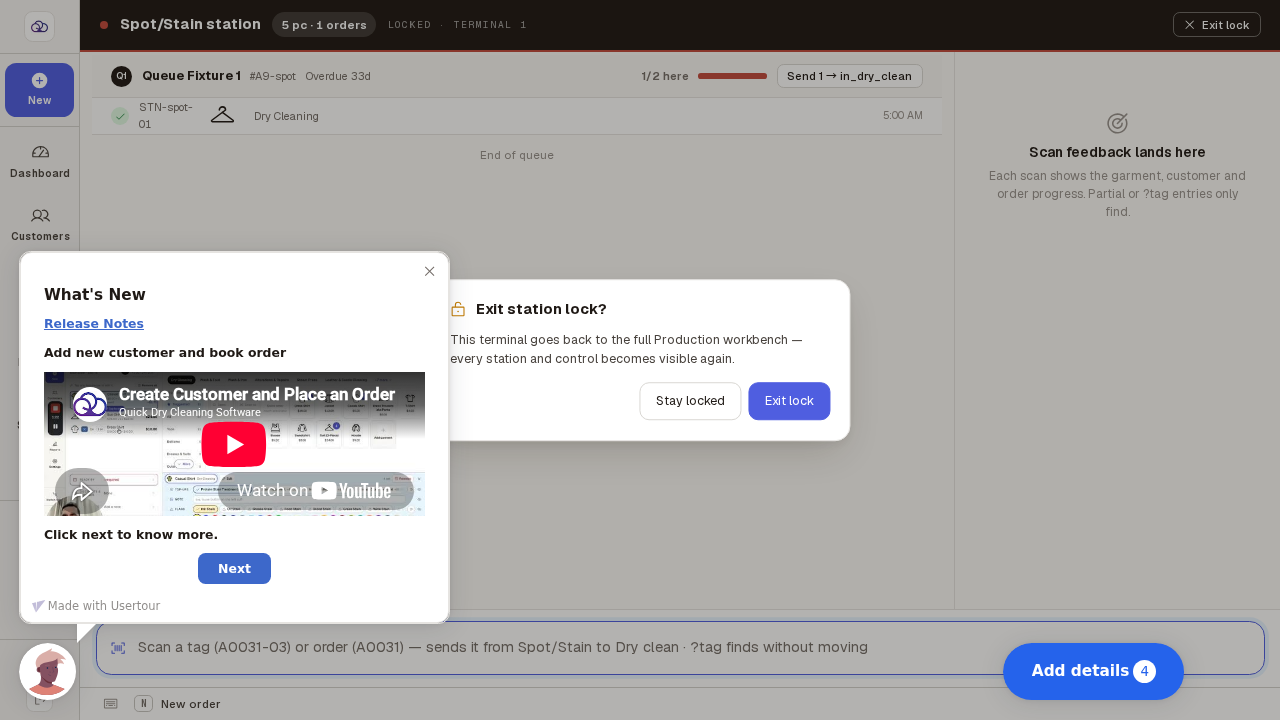
Press "Exit lock" at the top right, then confirm.
It asks before releasing, so a stray press cannot unpark the terminal. Choose "Stay locked" to leave things as they are. Note the box will not go away if you press Escape — pick one of the two buttons.
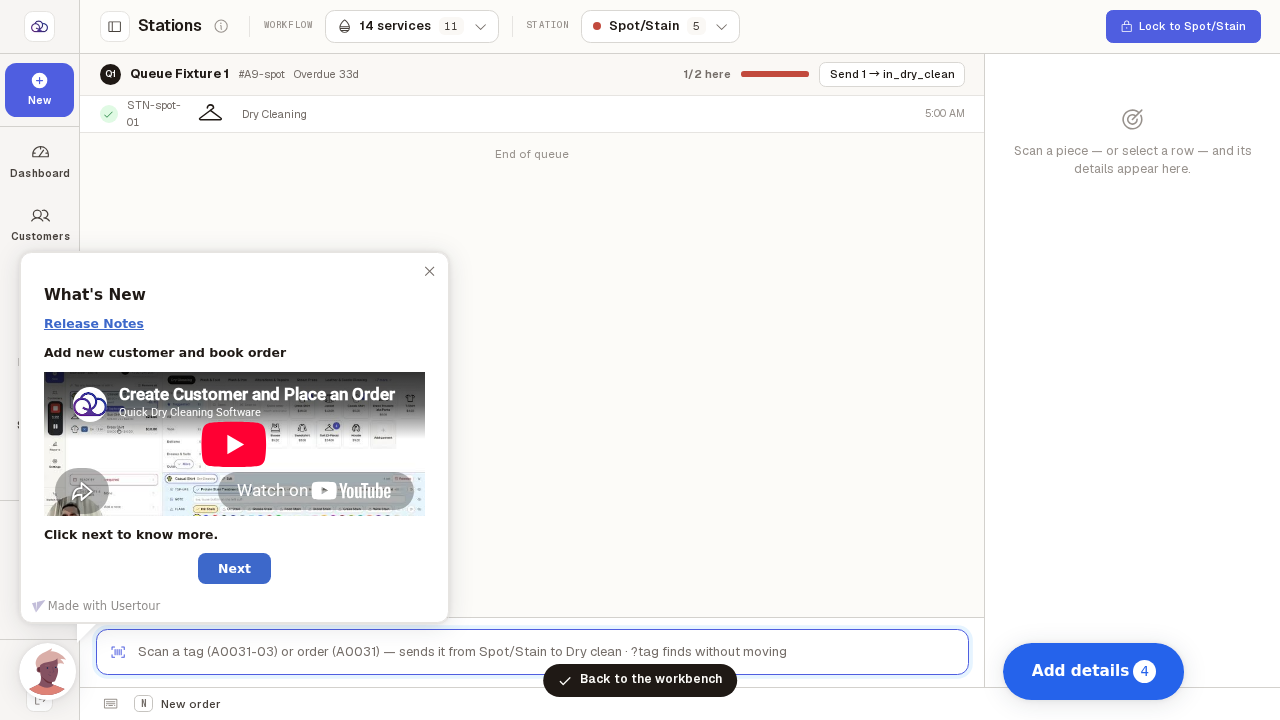
The full Stations screen is back, and it stays back — including after a restart.
Every bench and control is available again, and the "Lock to" button returns if you want to park the terminal somewhere else. The sidebar stays as icons until the next reload; the icons still work, and the arrow at the top left brings the labels back.