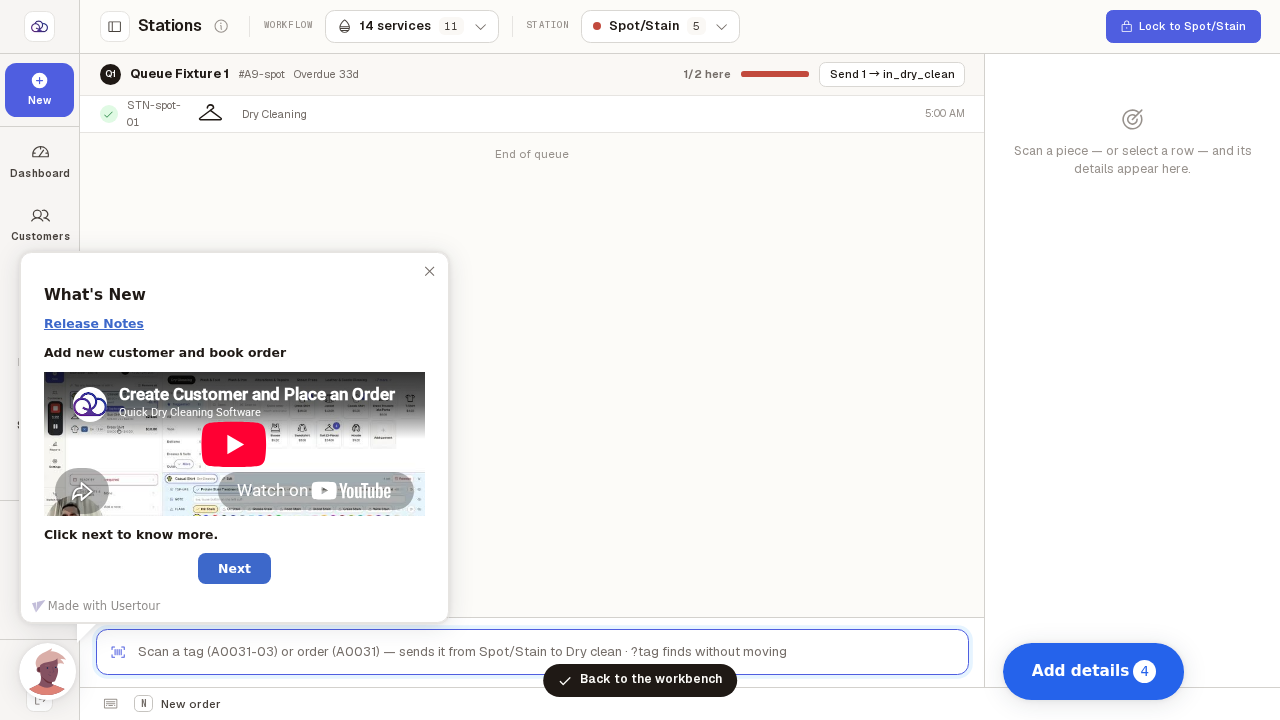
Lock a terminal to one bench
Park a screen at a single bench so it only shows that bench's work and is ready to scan. Useful for a terminal that lives on the shop floor. It stays locked until someone unlocks it, even after the machine restarts. The garment shown is an example; the demonstration shop is empty.
Step by step
Open "Stations" and choose the bench this screen should be parked at.
Keyboard shortcut: press "3". The button next to the station name reads "Lock to" followed by whichever bench is selected — check it says the right one before pressing.
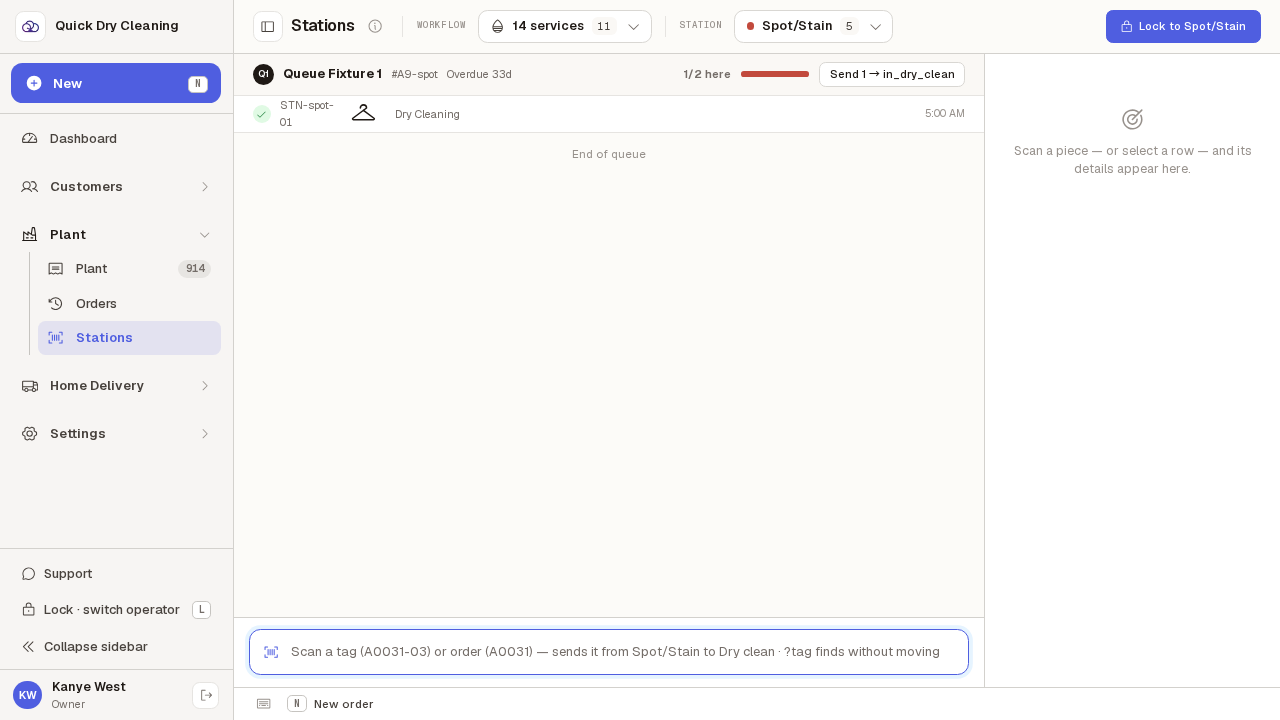
Press "Lock to <bench>". The screen changes to show only that bench.
A short message confirms it. The sidebar and the workflow and station pickers go away, the bench name appears at the top with a LOCKED badge, and the cursor moves into the scan box so you can start scanning straight away.
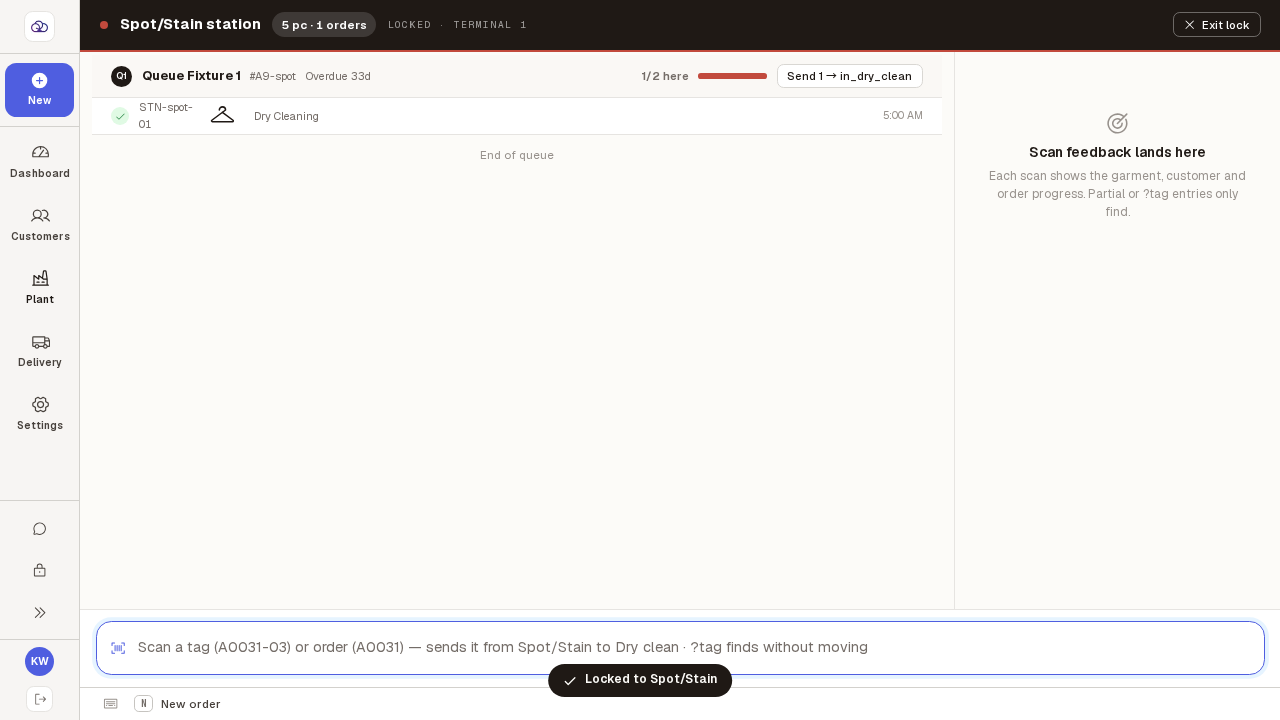
The screen now only ever shows this bench — and it stays that way if the machine restarts.
It also widens what it shows: every garment at this bench appears, whichever service it belongs to, not just the workflow that happened to be selected. Note the scan box does NOT take the cursor by itself after a restart — click it once before your first scan.
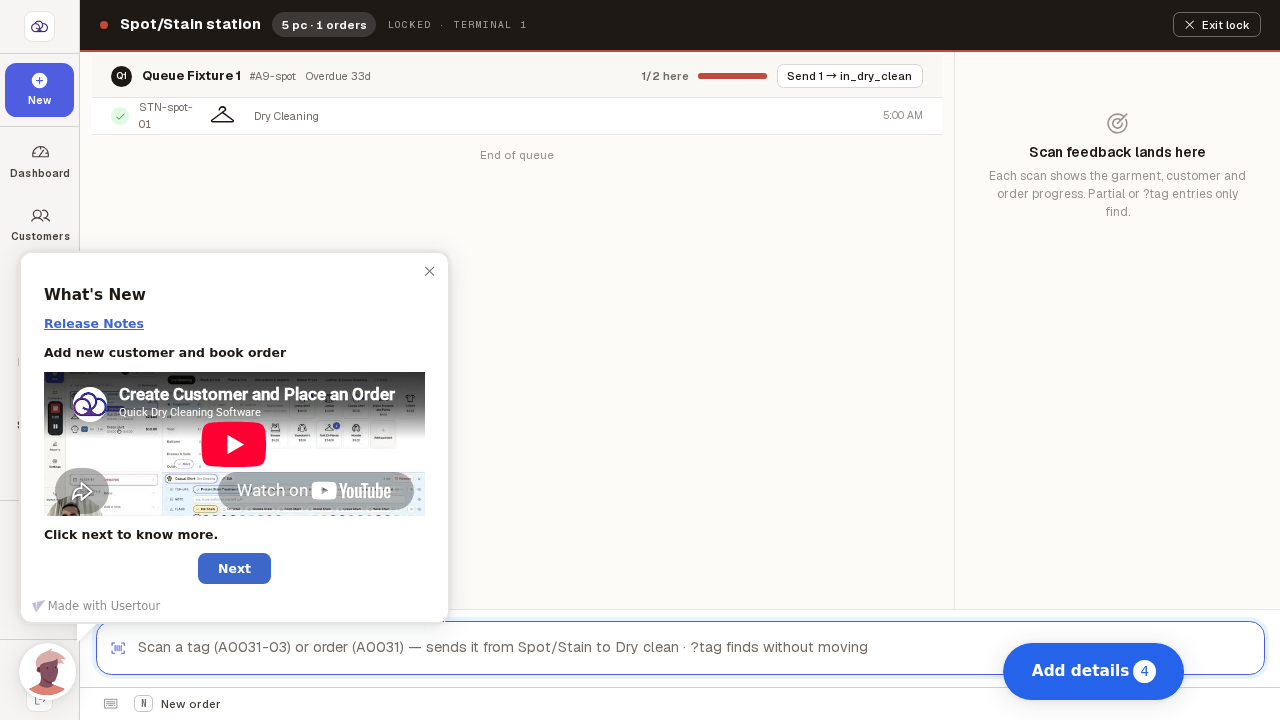
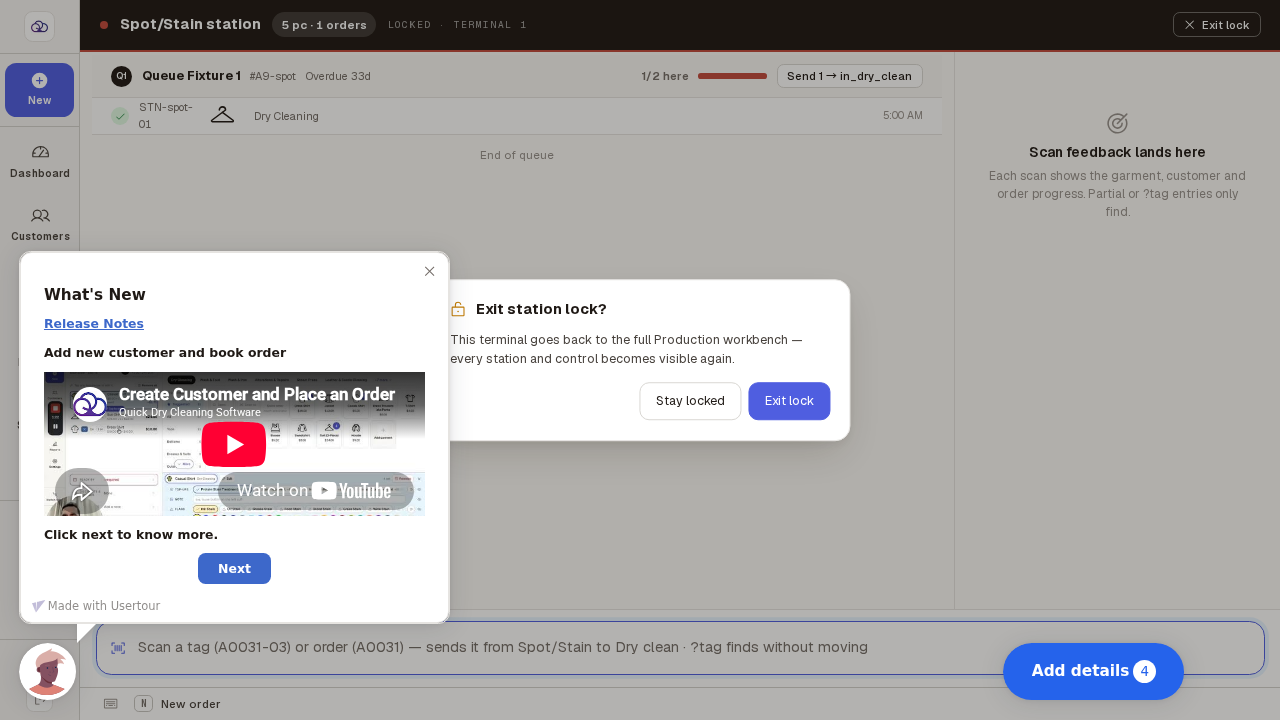
To unlock, press "Exit lock" at the top and confirm.
It asks first, so a stray press cannot unpark the terminal. Choose "Stay locked" to leave it as it is, or "Exit lock" to go back to the full Stations screen.
You are back on the full Stations screen, with every bench available again.
The sidebar stays tucked away — use the arrow at the top left to bring it back if you want it.