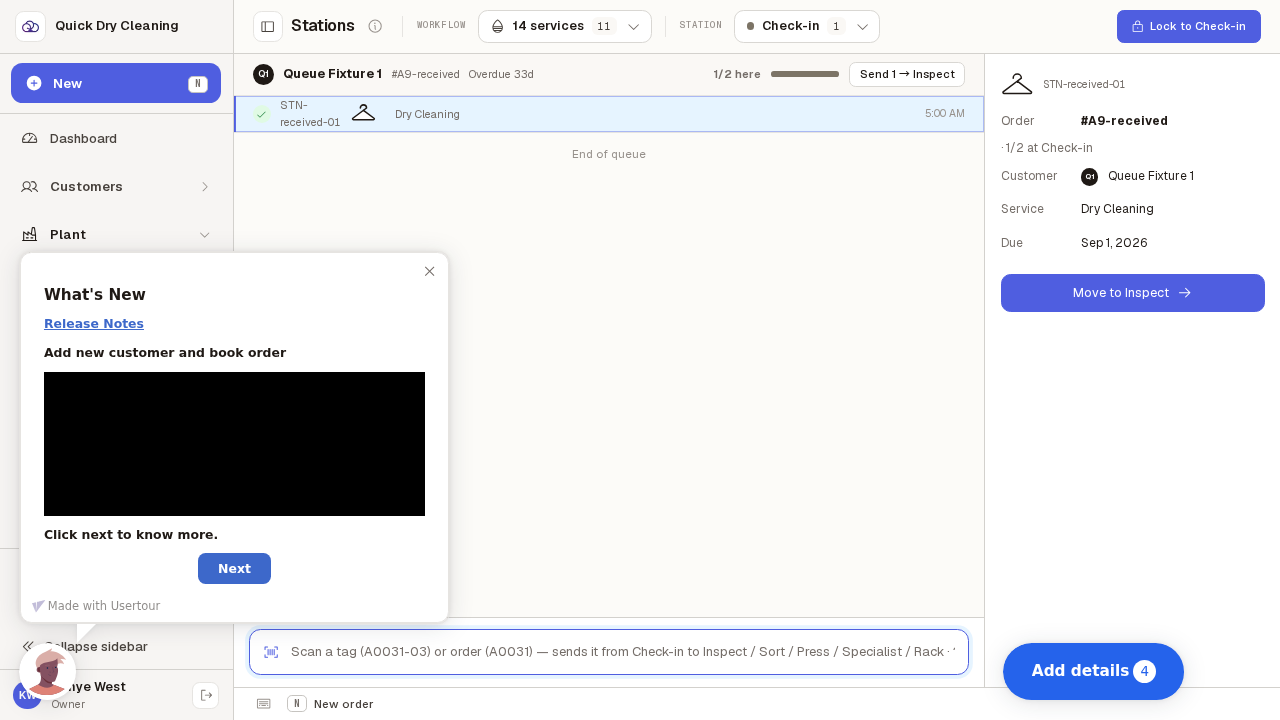
Pick your station and see what is waiting
Choose your bench from the station list and the queue below shows only the garments waiting there. Click one to see its details. The garments in these screenshots are examples — the demonstration shop is empty.
Step by step
Open "Stations". The station you last worked is already selected, and the garments waiting there are listed below.
Keyboard shortcut: press "3". Your choice of station is remembered on this computer, so you come back to the same bench next time.
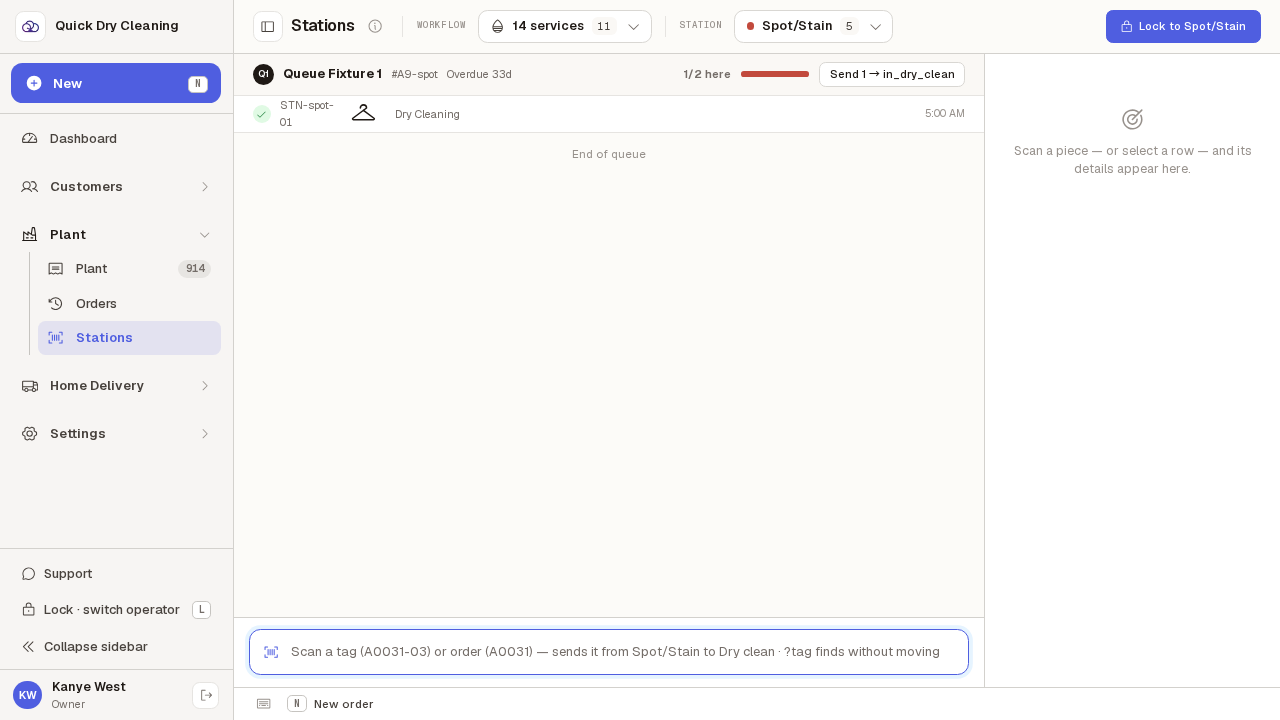
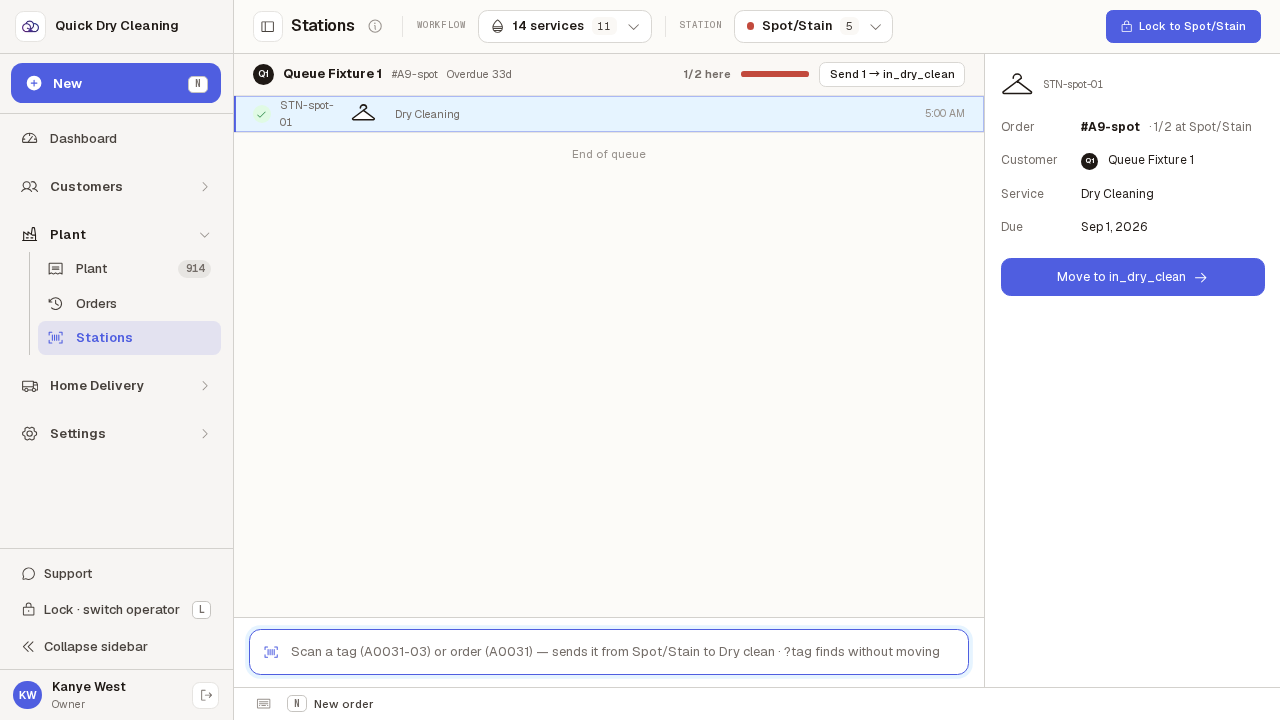
Click a garment in the list to see its details on the right.
The panel shows the tag, which ticket it belongs to, the customer, the service and when it is due — plus the button to send it on to the next bench.
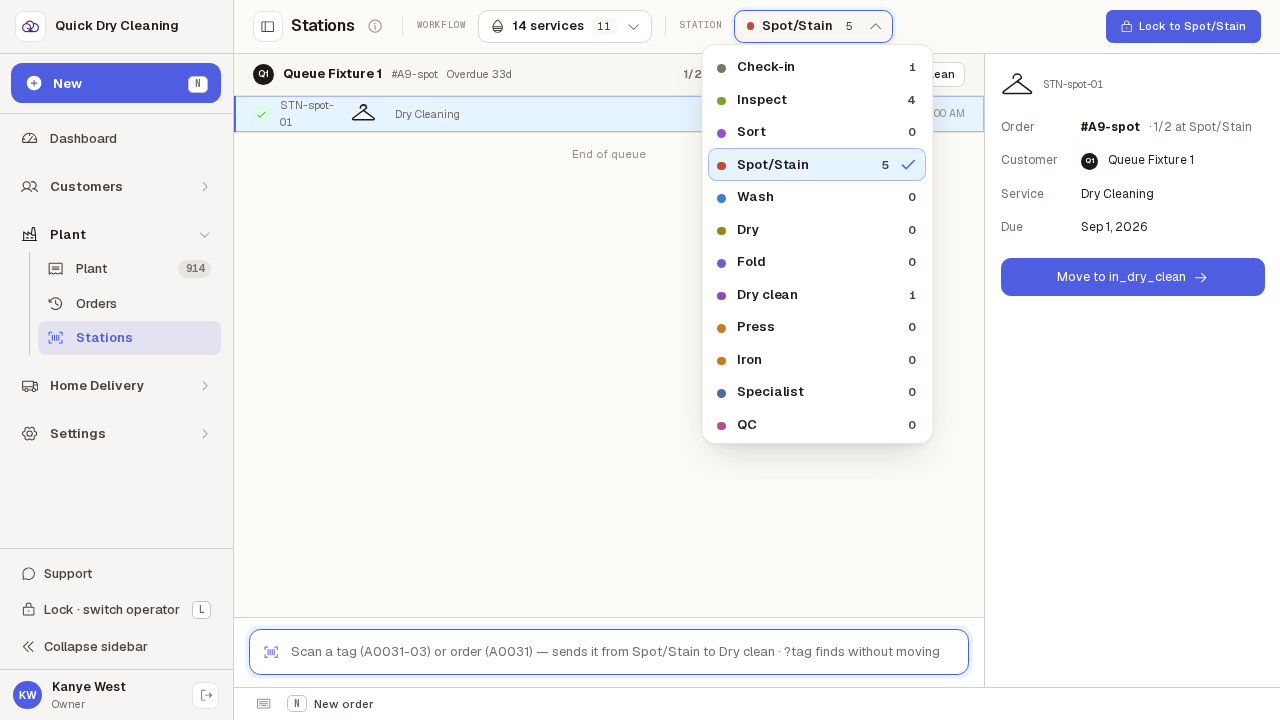
To move to another bench, open the station list and pick a different station.
The number beside each station is how many garments are waiting there.
The queue swaps to that station's garments, and the details panel empties.
You are now looking at Check-in 0. Only garments waiting at this bench appear, and the garment you had selected has cleared because it belonged to the other bench — that stops you acting on something no longer in front of you.
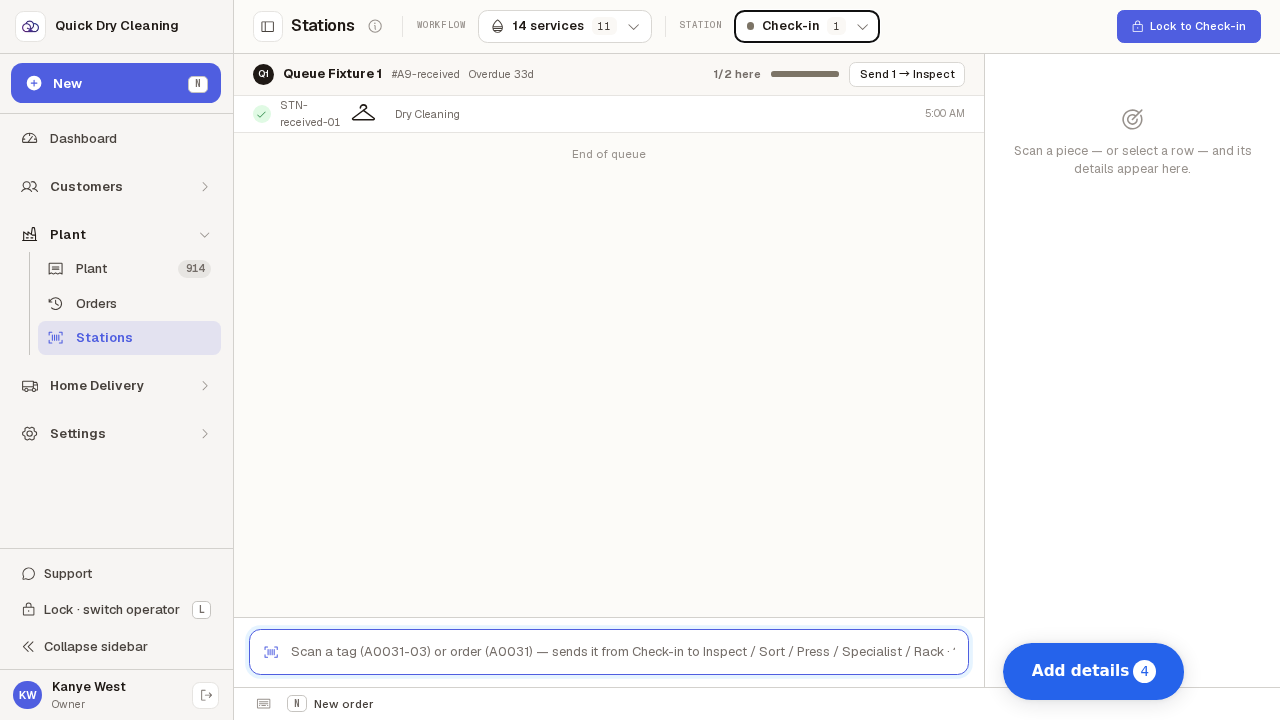
Click a garment on this bench to fill the details panel again.
The panel now shows this station's work. Its "Move to" button sends the garment on to whichever bench comes next on this line.