
Back
Switching the POS between light and dark
One button in Settings → Preferences flips the whole POS between a light and a dark look. It is remembered on this till only — other tills, and other people signing in here, keep their own.
THE SHORT ANSWER
Open Settings → Preferences. Theme is the first row→Press it. The whole POS switches to dark at once→Press it again to go back
Step by step
0 of 3 done
1
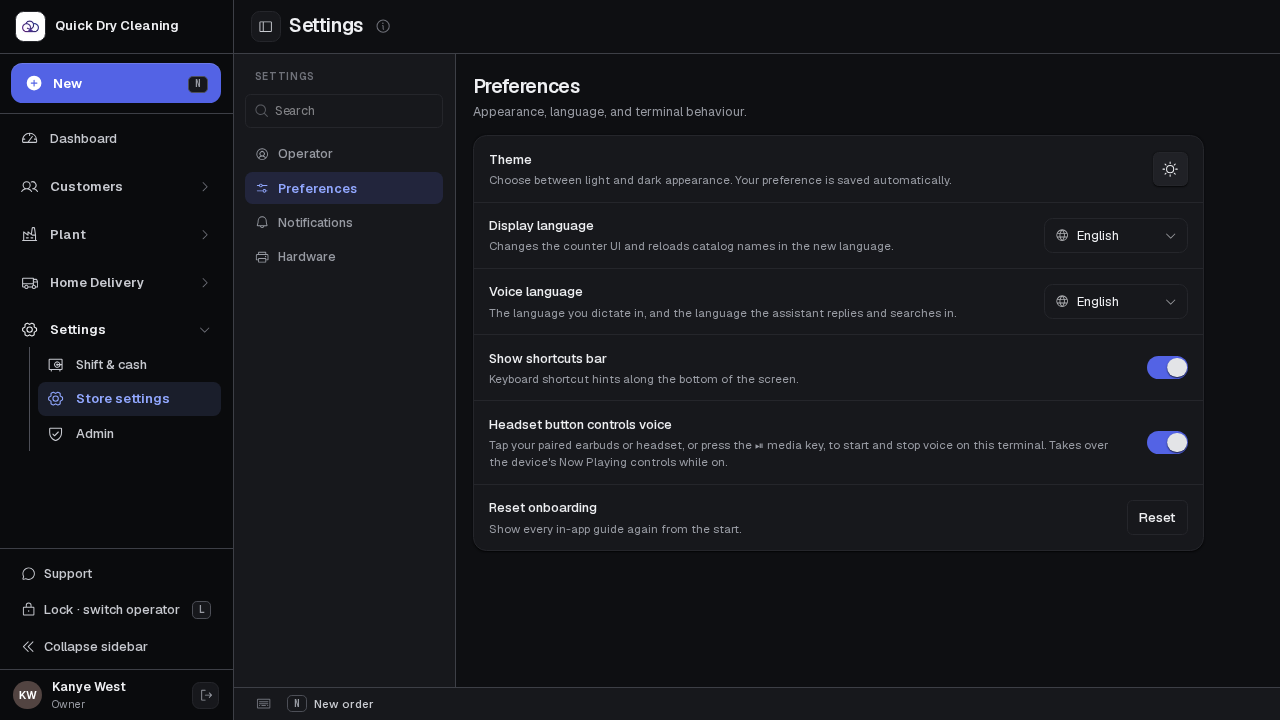
Open Settings → Preferences. Theme is the first row.
The round button on the right shows a moon while the POS is light, and a sun while it is dark — it shows what you will switch TO.

Open the screen full size
2
Press it. The whole POS switches to dark at once.
There is no Save button — the choice is kept on this till straight away and is still there after a reload or the next sign-in. A dark screen is easier on the eyes in a dim shop and at night.
Open the screen full size
3
Press it again to go back.
The theme only changes how this till looks. Receipts, tags and what customers see are not affected.

Open the screen full size