
Choosing the language the POS is shown in
Settings → Preferences → Display language switches every button, heading and message on the POS — and the catalog names — into the language you pick. It follows you: it is saved to your account.
Step by step
Open Settings → Preferences and find Display language.
It is the language of the counter screens. It is separate from Voice language just below it (the language you dictate in) and from the store's receipt language, which customers see.

Open the list. Each language is written in its own script.
The list holds the languages your store offers — Back office → Store setup → Languages decides which. The tick marks the one in use. Type to search if the list is long.
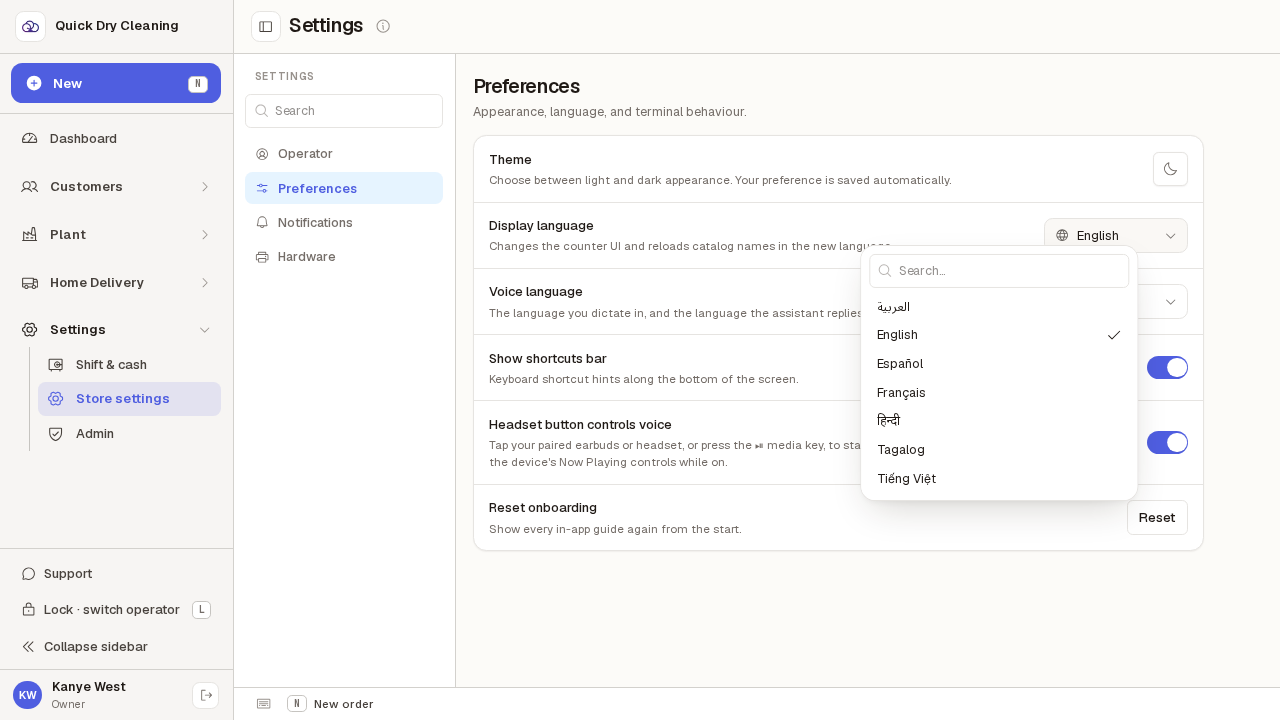
Pick one — here, Español. The POS switches at once.
Everything changes straight away, including this page ("Settings" becomes "Configuración") and catalog names that have a translation. No reload, no Save button. The choice is kept for your account, so it follows you to other tills. If saving it fails you will see a short "save failed · retry" note under the list: the screen has still switched, and Retry saves it again.
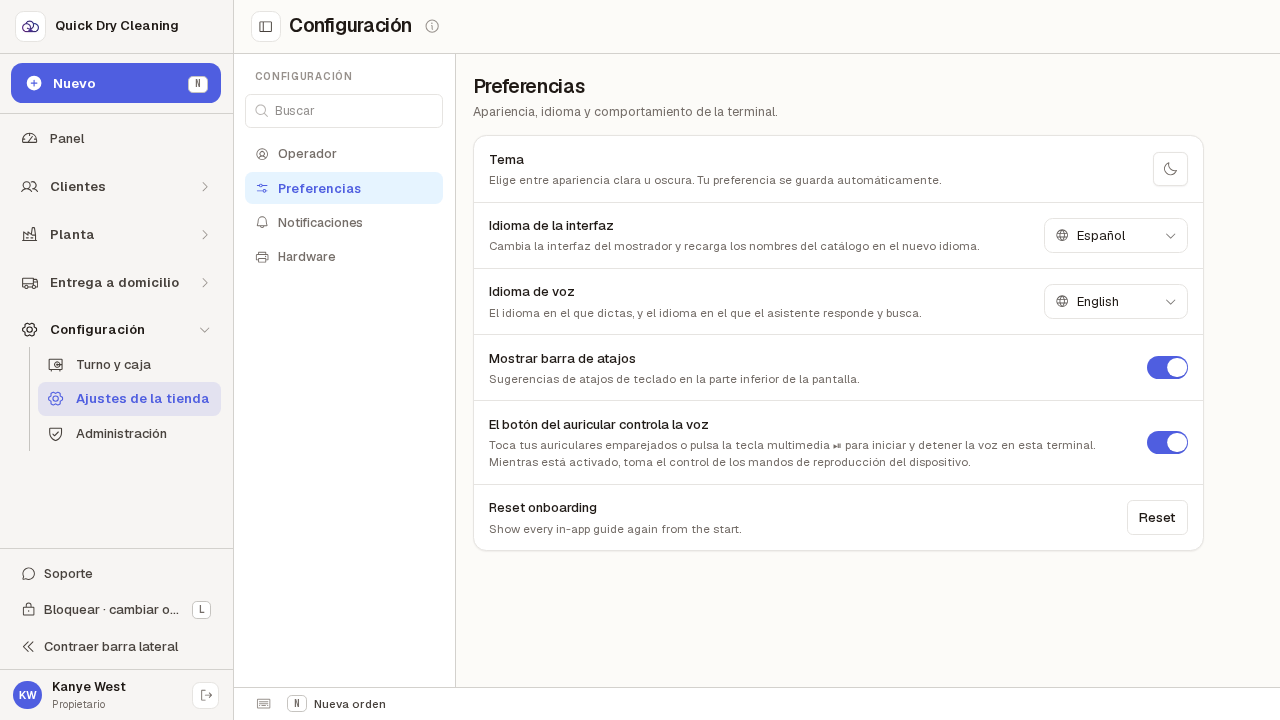
To go back, open the same list and pick English.
The list keeps its place even when you cannot read the screen: it is the second row on Preferences, the drop-down with a globe icon.
