
Setting how long a pickup request rings
When a customer books a pickup online, every till in the store rings and shows the request. Settings → Notifications sets how long it rings and stays on screen before it moves to Requests — and lets you try it out.
Step by step
Open Settings → Notifications. "Incoming pickup alert" says what happens now.
Here: "Rings and stays on screen for 30 seconds, then parks in Requests". Parked requests wait under Pickups & deliveries → Requests; nothing is lost when the alert ends. This is a store setting, so it applies to every till in the store.

Open the drop-down to see the choices.
From 15 seconds up to 2 minutes, or "Until someone answers" — it keeps ringing until a person accepts, declines or parks it. Busy counters usually want longer; a quiet store with one person on the till may prefer "Until someone answers".
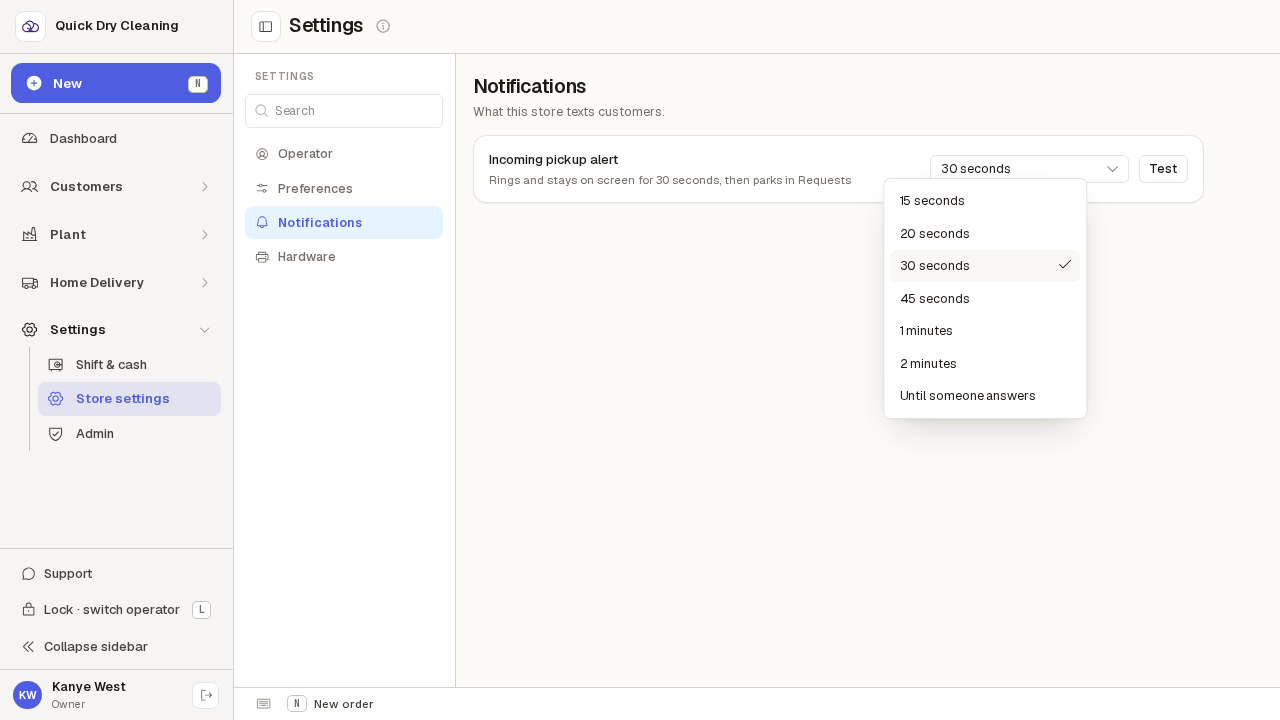
Pick a time — here 45 seconds. It is saved the moment you pick it.
There is no Save button. The line under the heading changes to match, which is how you know it took. The next request that comes in uses the new time on every till.

Press Test to see and hear exactly what the counter will get.
The real alert card appears, for a pretend "Test customer", ringing for the time you chose and counting down at the bottom. It is only a rehearsal: no request is created and its buttons do nothing. Turn the till's sound up if you cannot hear it.
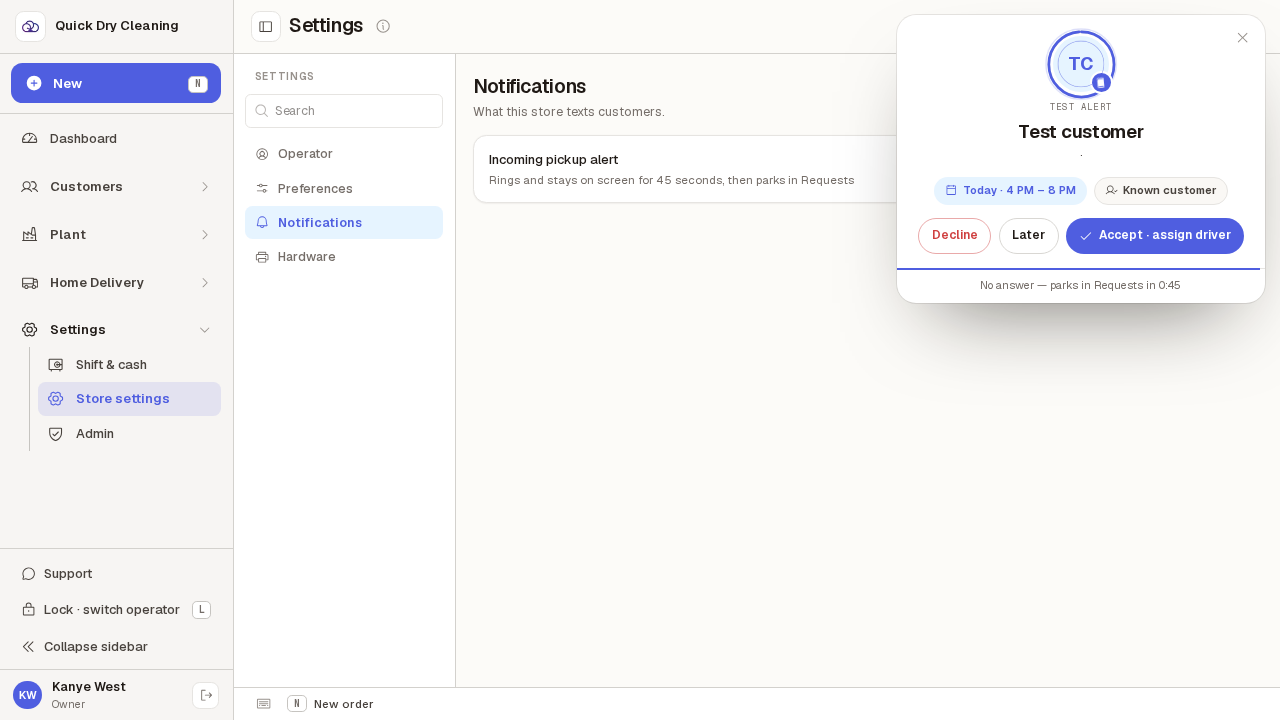
Close it with the × in its corner, or just let it run out.
When the time is up it disappears by itself — exactly as a real request would park in Requests.