
Starting voice from a headset button
With "Headset button controls voice" on, a tap on paired earbuds or a headset — or the ⏯ media key — starts and stops voice, just like pressing V. It is on by default and set per till.
Step by step
In Settings → Preferences, "Headset button controls voice" is on to start with.
Pair your earbuds or headset with the till computer as usual. While this is on, the POS takes over the computer's play/pause controls, so the headset button — or the ⏯ key on the keyboard — goes to the POS instead of a music player.

On the New order screen, tap the headset button. Voice starts listening.
It does exactly what V does on that screen: "Ready. Waiting for audio." and a running timer mean the POS is listening. Speak the order as you normally would. Wait until the screen has finished loading ("Initializing…" gone) before the first tap.
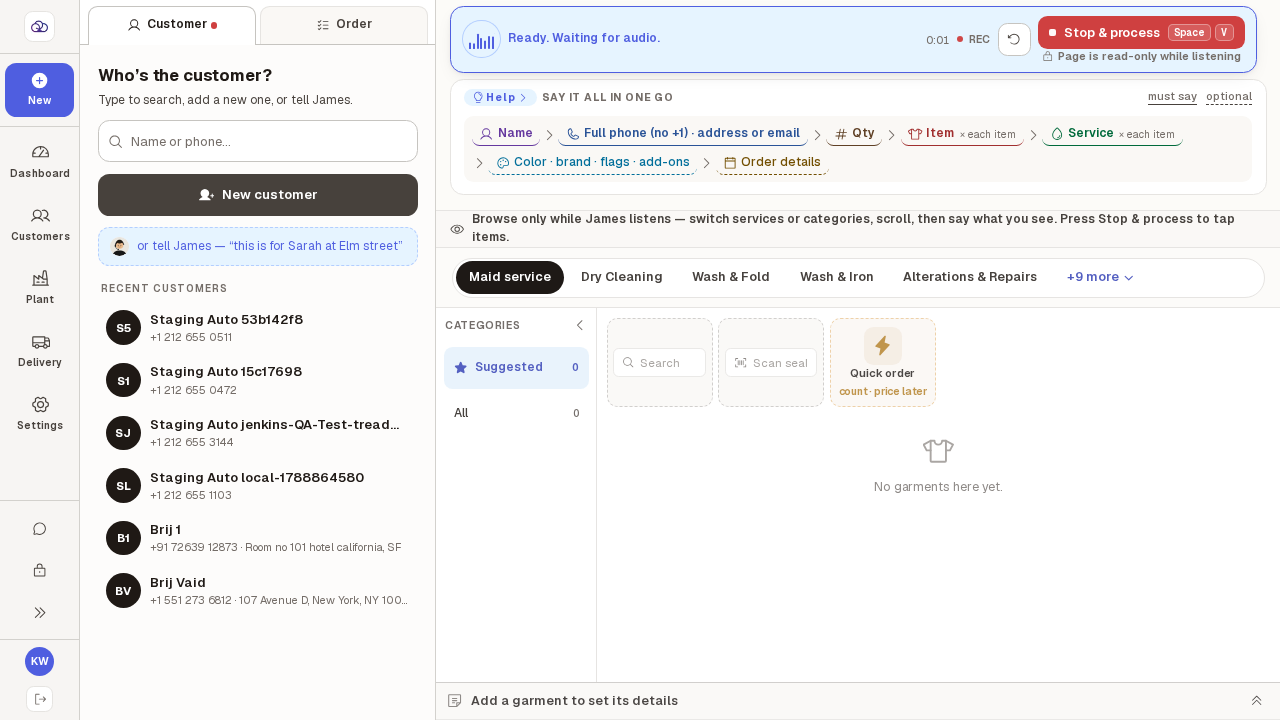
Tap it again to stop. The POS processes what it heard.
The same as pressing V a second time. Nothing was said in this example, so the POS answers "Didn't catch that — try again" and adds nothing to the order.
To give the headset button back to music or calls, switch it off.
The POS lets go of the play/pause controls at once, on this till only. Voice still works from the V key and the microphone button.
