Page through order history
Move back and forth through the order list twenty at a time, and see why the list jumps back to the first page whenever you change the sort.
Step by step
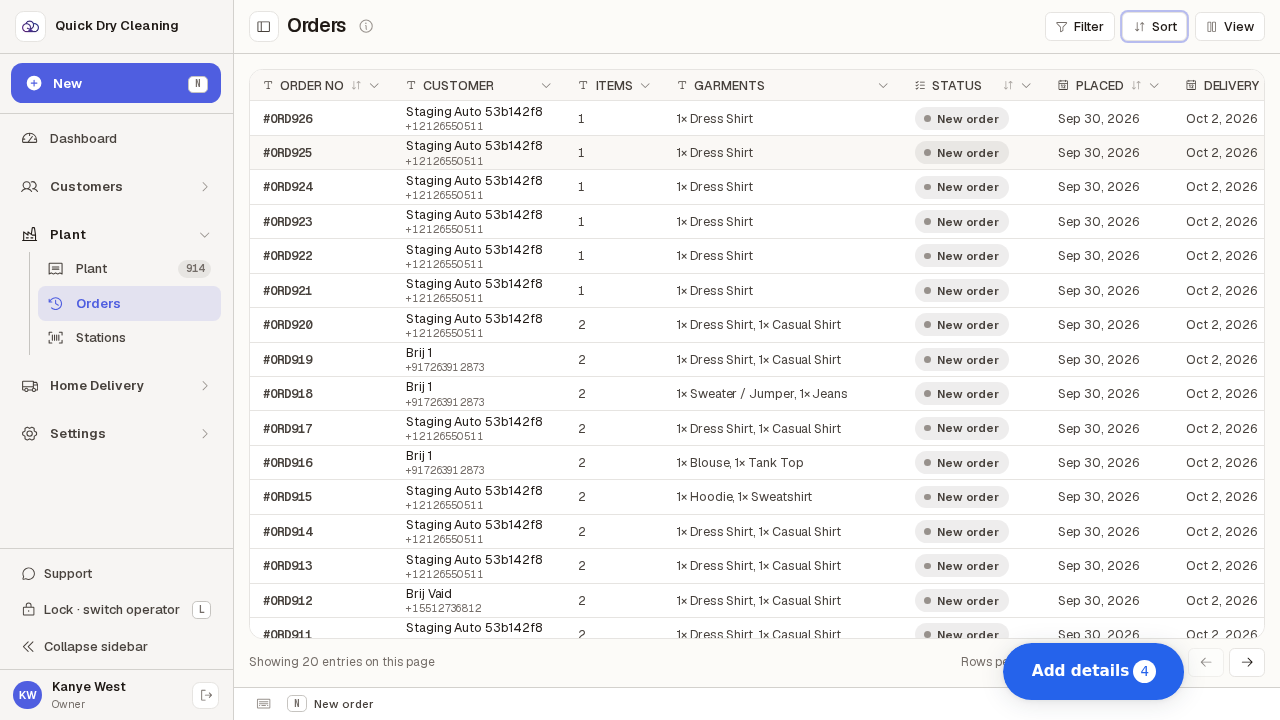
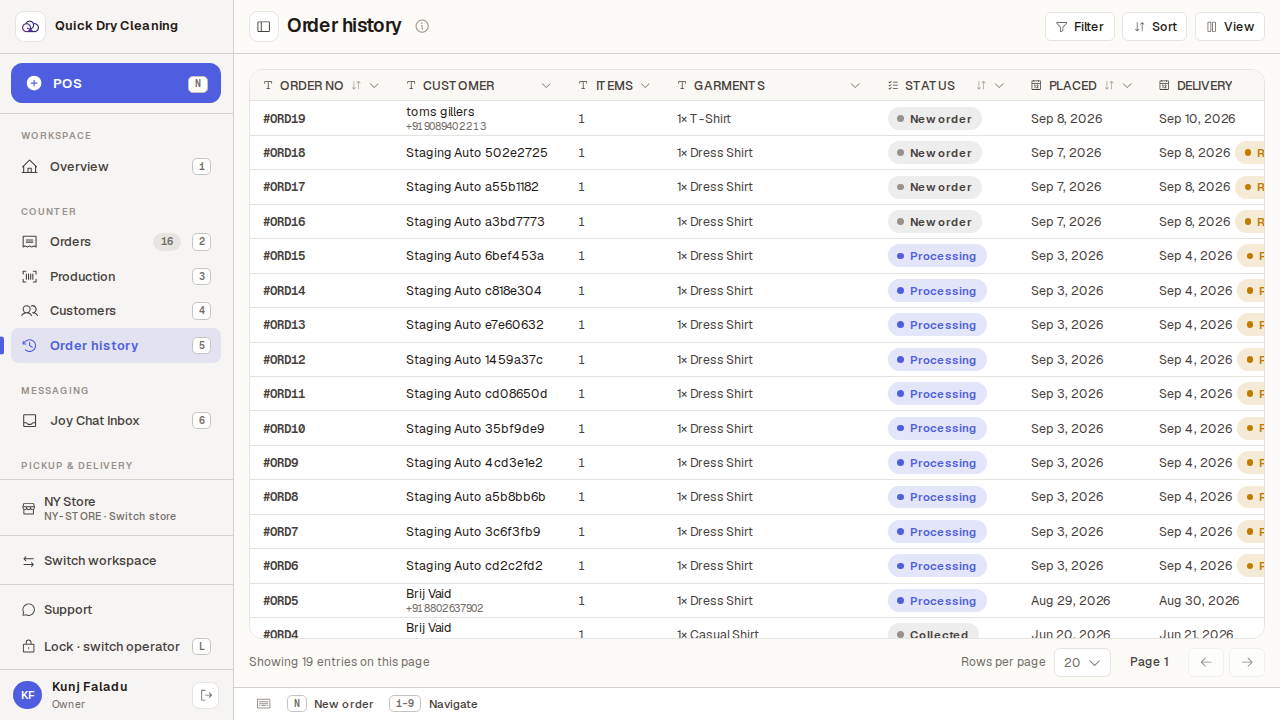
Open Orders from the sidebar (or press 5). Order history opens on the newest twenty orders.
The bar under the table is the pager: it says how many rows this page is showing, how many rows per page you asked for, and which page you are on. On page 1 the back arrow is greyed out — there is nothing before the newest order.
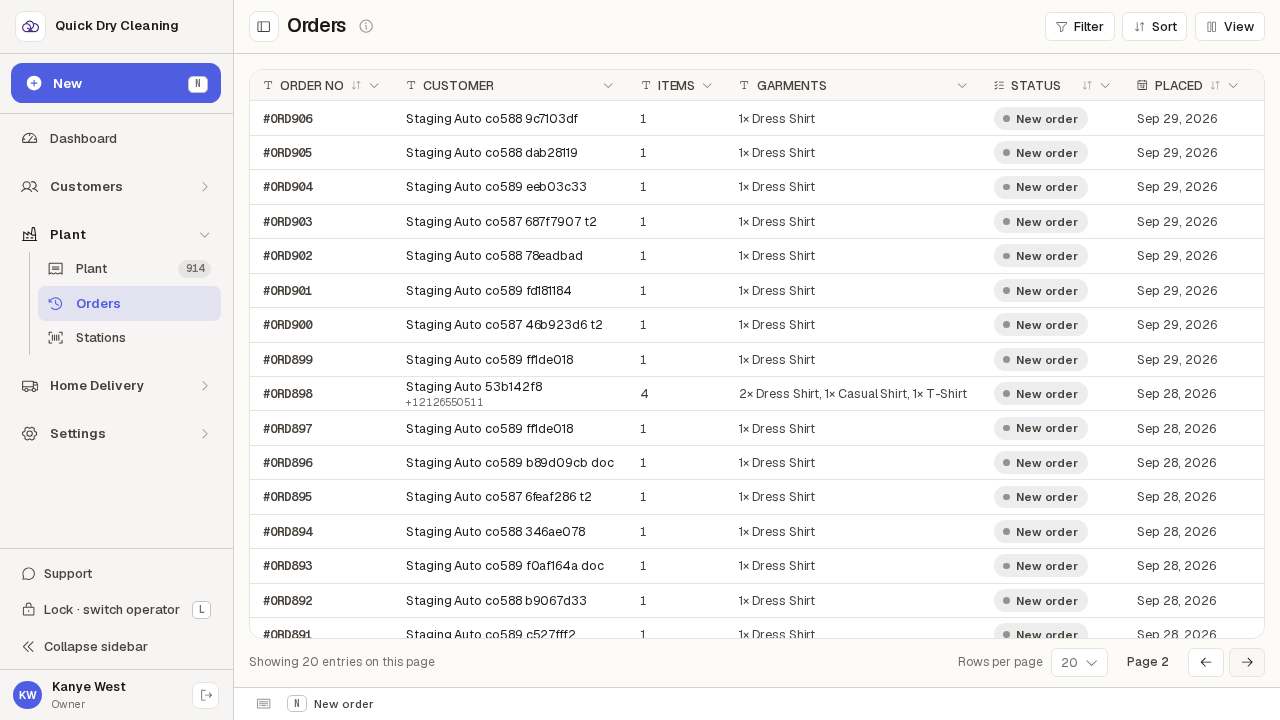
Press the → arrow at the bottom right for the next twenty orders.
The rows you were reading stay on screen while the next page is fetched, so nothing flashes empty. The list carries on exactly where page 1 stopped — an order never shows up on two pages, even if a colleague takes a new order while you are reading.
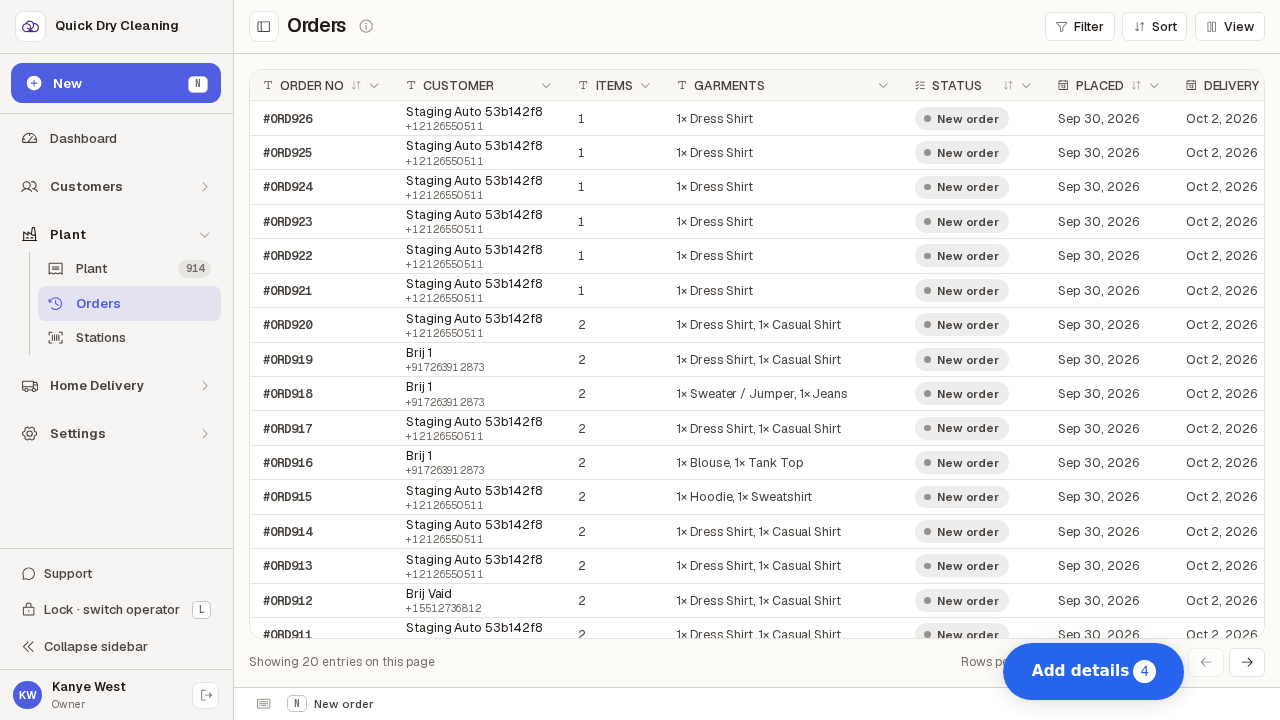
Press the ← arrow to go back.
Pages you have already looked at come back instantly — they are remembered rather than fetched again. Back on page 1 the ← arrow greys out once more.
Now change the order of the list: press Sort, then "Add sort". The table re-sorts by order number.
Changing the sort (or a filter) always takes you back to page 1 — the numbering starts again from the top of the new order, so you cannot land on a "page 3" that no longer means anything.
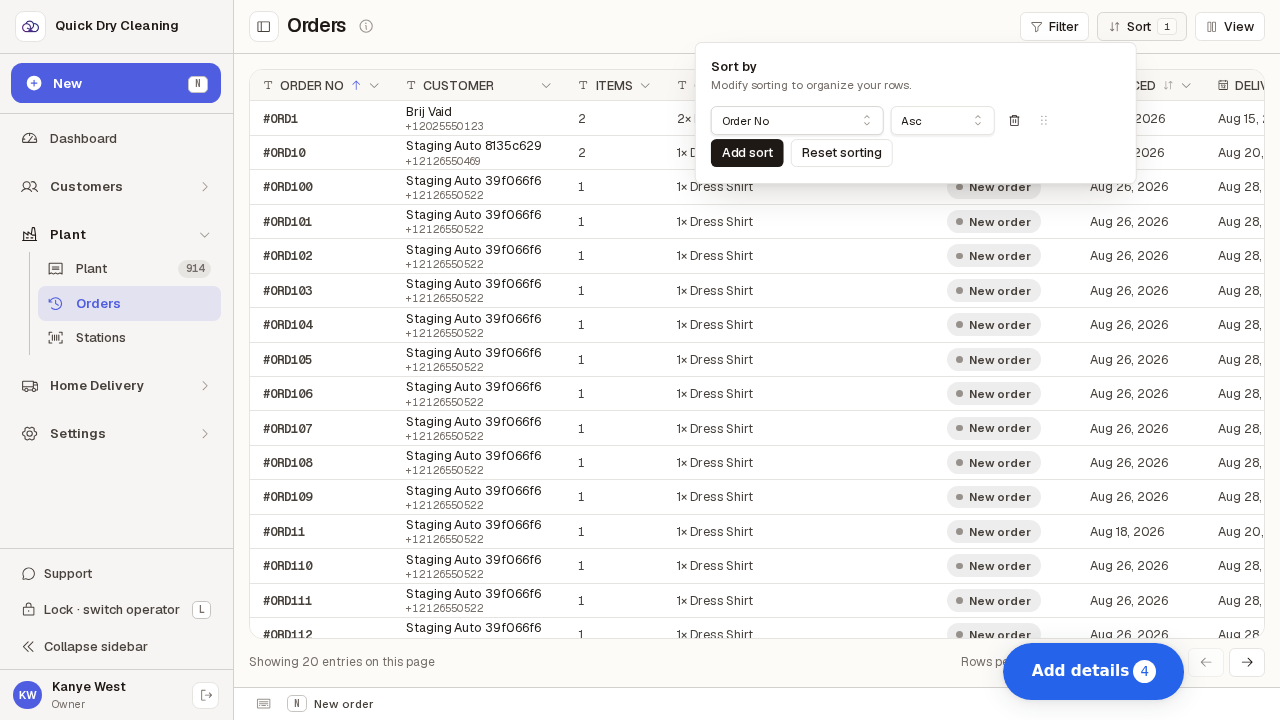
Press "Reset sorting" in the same panel to go back to the normal newest-first list.
The count badge on the Sort button disappears and the list returns to page 1 of the newest orders.