Sort the order history by a column
Reorder the order history from any column heading — lowest first, highest first, or back to normal — and see why some columns can be sorted and others cannot.
Step by step
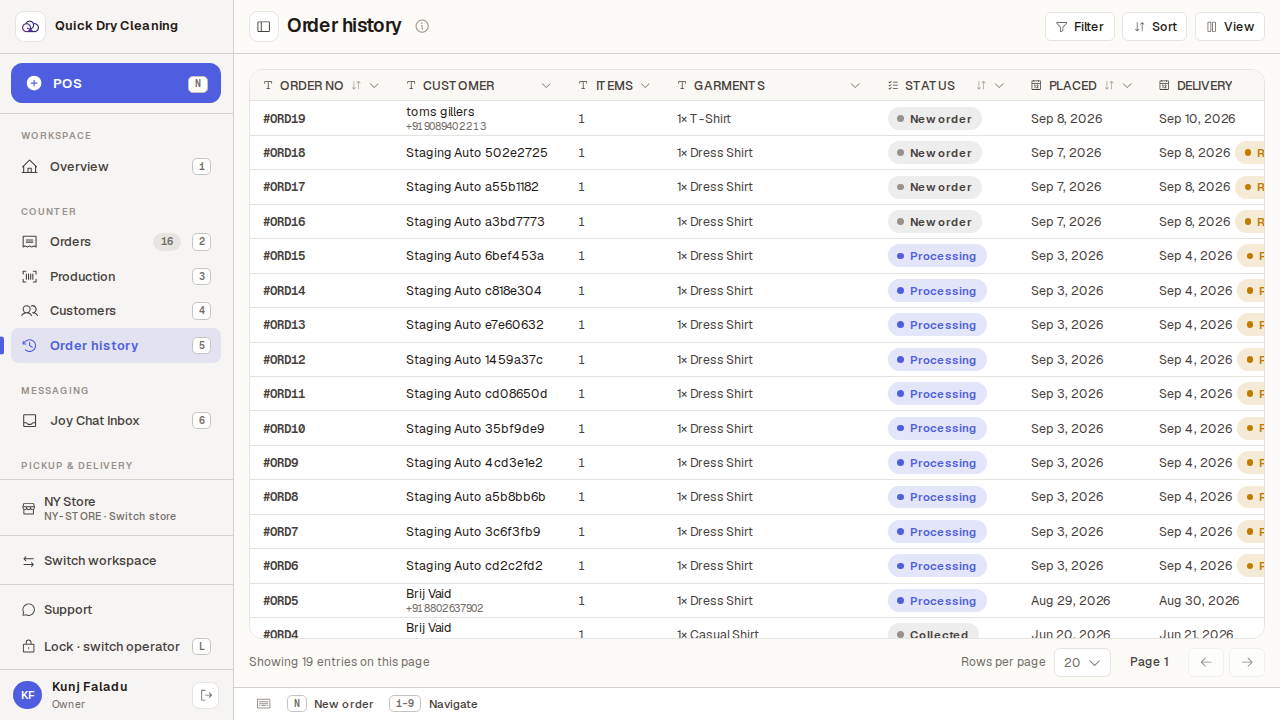
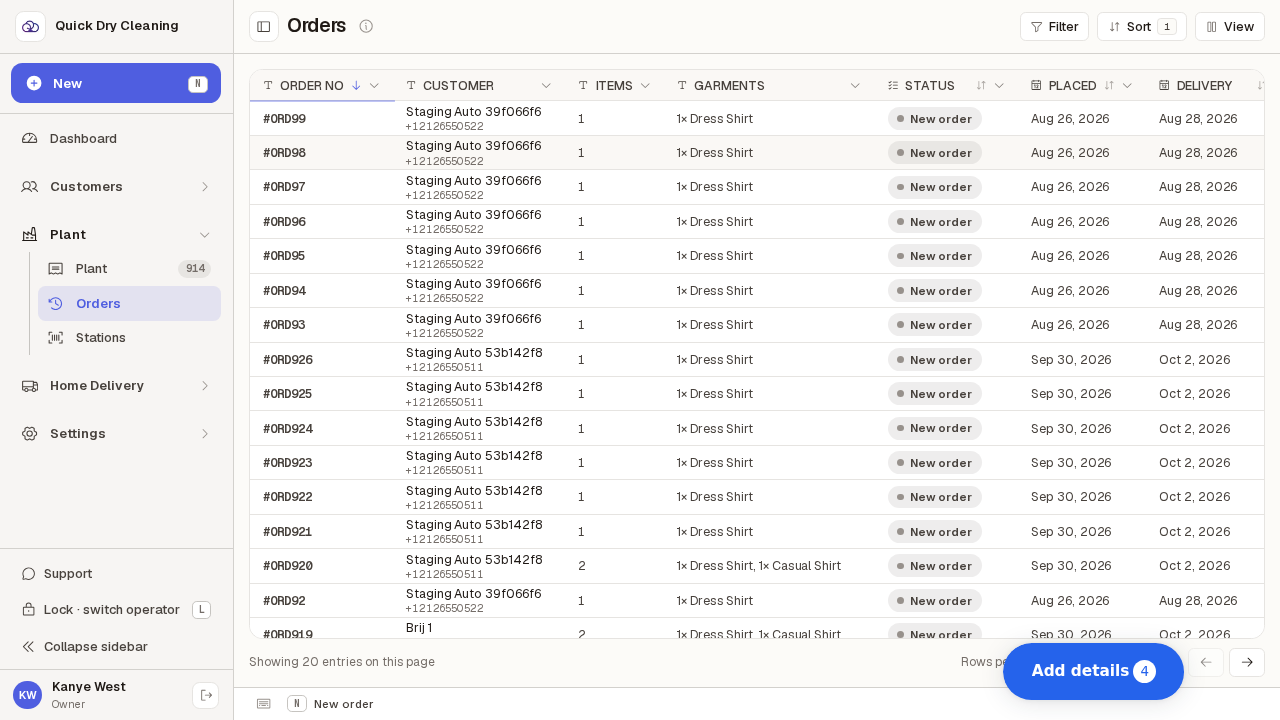
Open Orders from the sidebar. The order history opens on page 1, newest order at the top.
The footer tells you which page you are on and lets you change how many rows you see at a time.
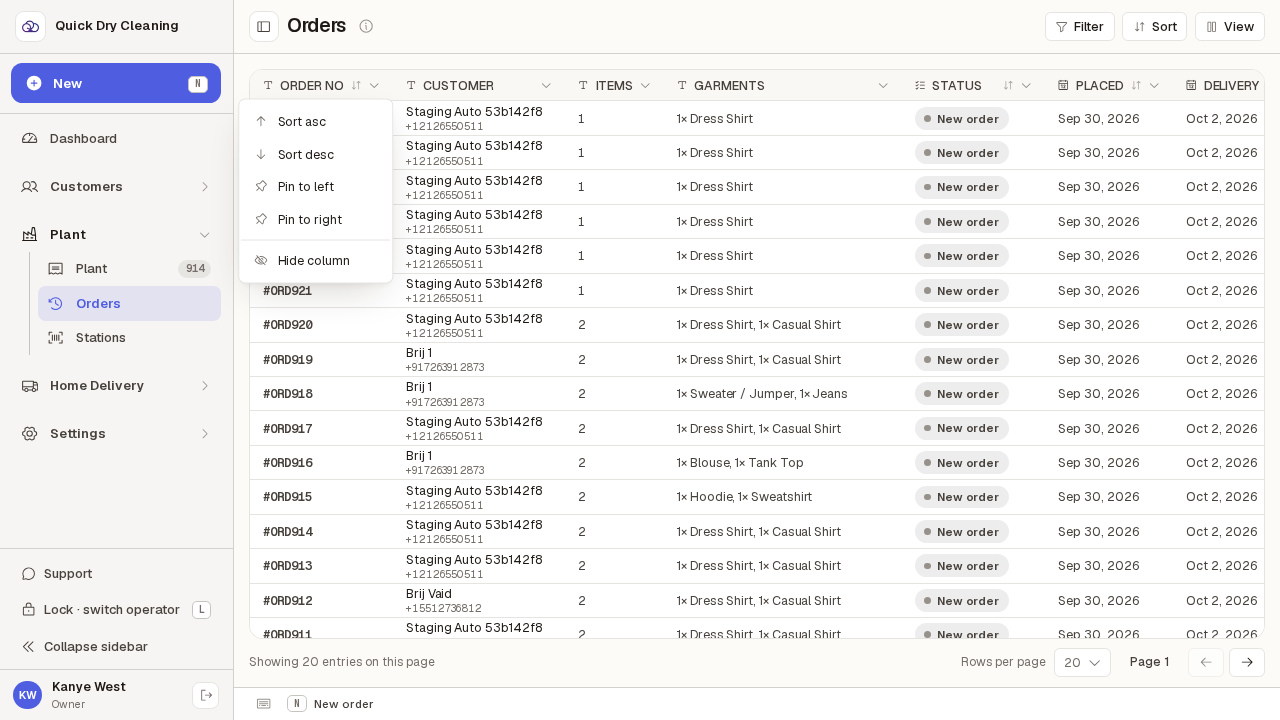
Click a column heading — here "Order No" — to open its menu. Sortable columns offer "Sort asc" and "Sort desc" at the top.
Sortable columns: Order No, Status, Placed, Delivery and Total. Customer, Items, Garments, Paid, Due, Tip and Booked by only offer Pin and Hide — they cannot be sorted.
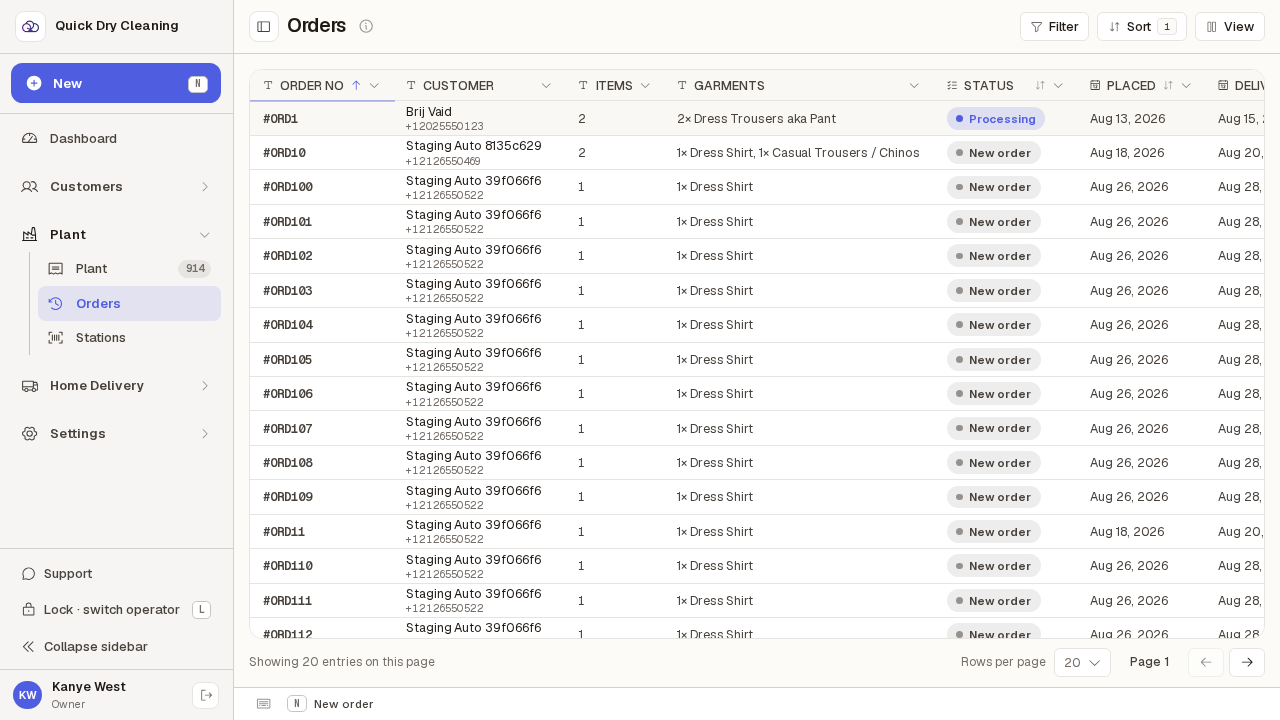
Choose "Sort asc" and the whole history is re-ordered lowest first — not just the rows you can see, the entire list.
The "Sort" button in the toolbar now shows a 1: that is the number of sorting rules in force. Whatever page you were on, you are put back on page 1.
Open the same heading again and pick "Sort desc" to flip it — highest first.
The menu also gains a "Remove sort" item once a column is sorted; use it, or "Reset sorting" in the toolbar Sort panel, to go back to the default newest-first order.
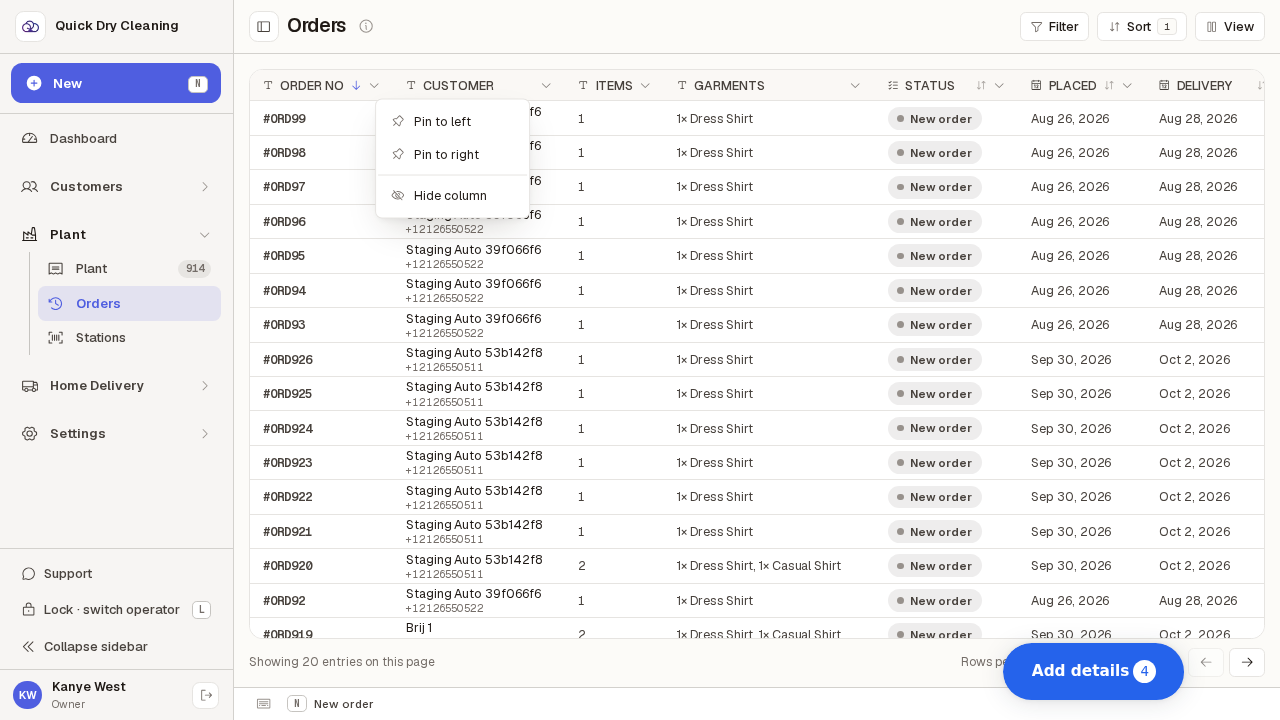
A column that cannot be sorted still has a menu — it just has no Sort options in it. "Customer" is one of these.
If you need to find one customer's orders, use Filter rather than sorting.