
Back
Look up the store’s order history
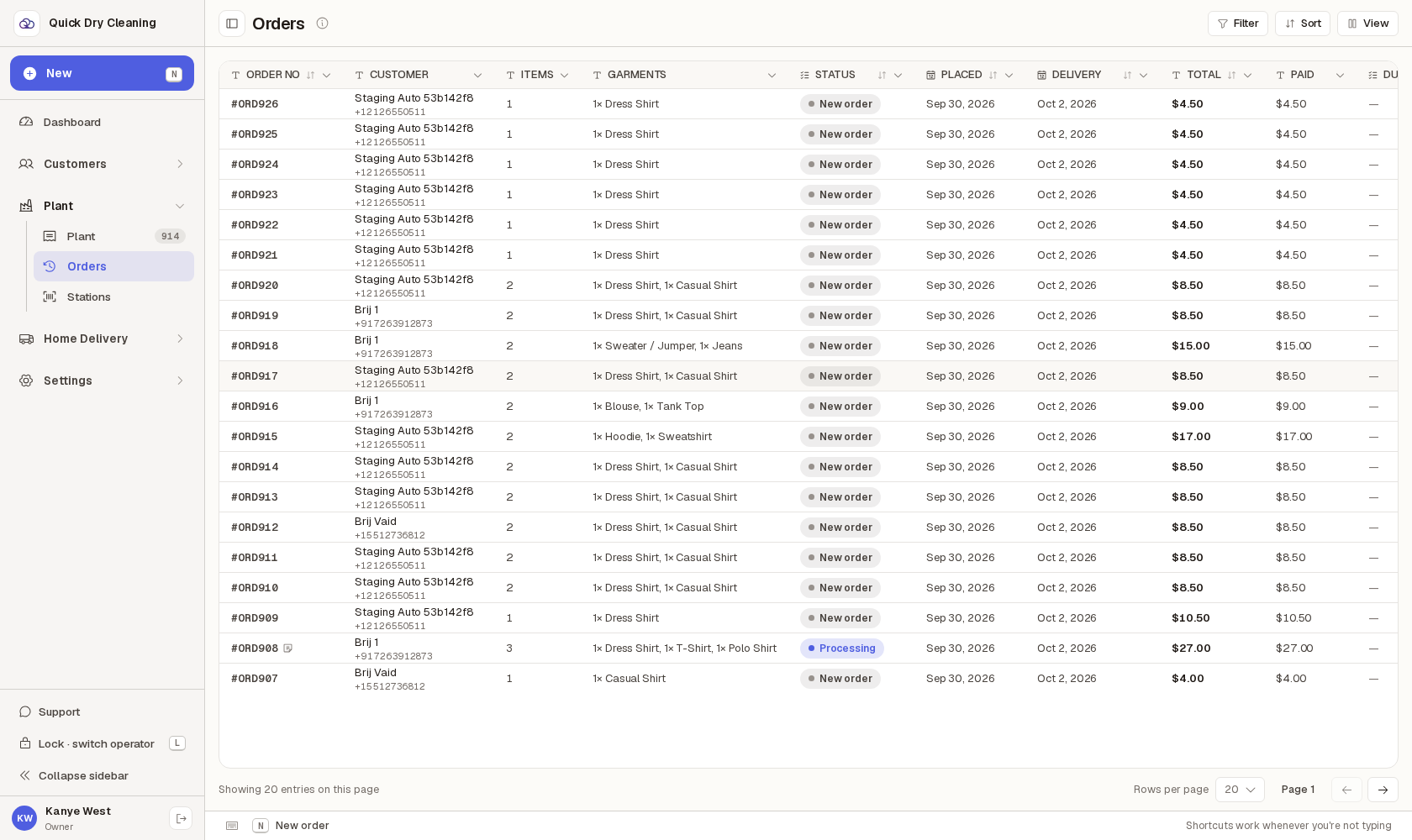
Every order the store has taken, newest first, twenty to a page — who it was for, what is in it, where it stands and what is still owed.
Step by step
0 of 3 done
1
Open Orders from the POS sidebar. "Order history" lists the whole store’s orders, newest at the top.
Each line shows the order number, the customer and their phone, how many items and which garments, the status, the day it was placed, the delivery day, and the money — total, paid, and anything still due (a dash means nothing is owed).
Open the screen full size
2
The screen loads twenty orders at a time. Use the arrows at the bottom right to move between pages, and "Rows per page" to show more at once.
The left arrow is greyed out on page 1 because there is nothing before it. Older orders are further back — page 2, 3 and so on.

Open the screen full size
3
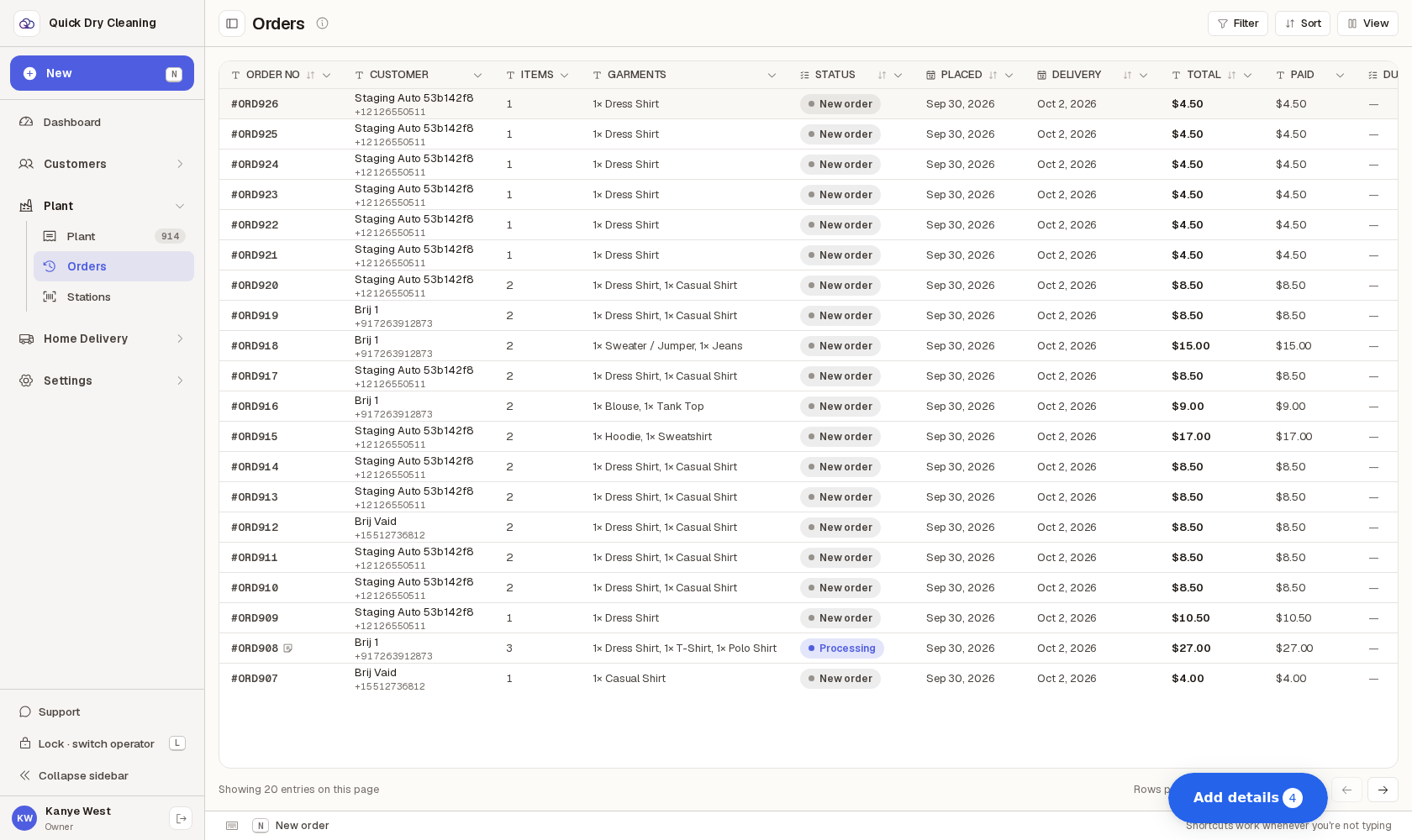
This screen is for looking, not for doing: clicking a line does nothing — no panel opens and the list stays put.
To work on an order, open it from the Tickets board instead. Use the Filter, Sort and View buttons above the table to narrow down or rearrange what you are looking at.
Open the screen full size